

Download – https://www.patreon.com/posts/63406224
Ref – https://bit.ly/3pESIV6
NFT – https://opensea.io/CGHOW
👉👉 If you Liked it – http://bit.ly/2UZmiZ4
Channel Ashif – http://bit.ly/3aYaniw
Support me on – https://www.patreon.com/Ashif
Support me on – paypal.me/9953280644
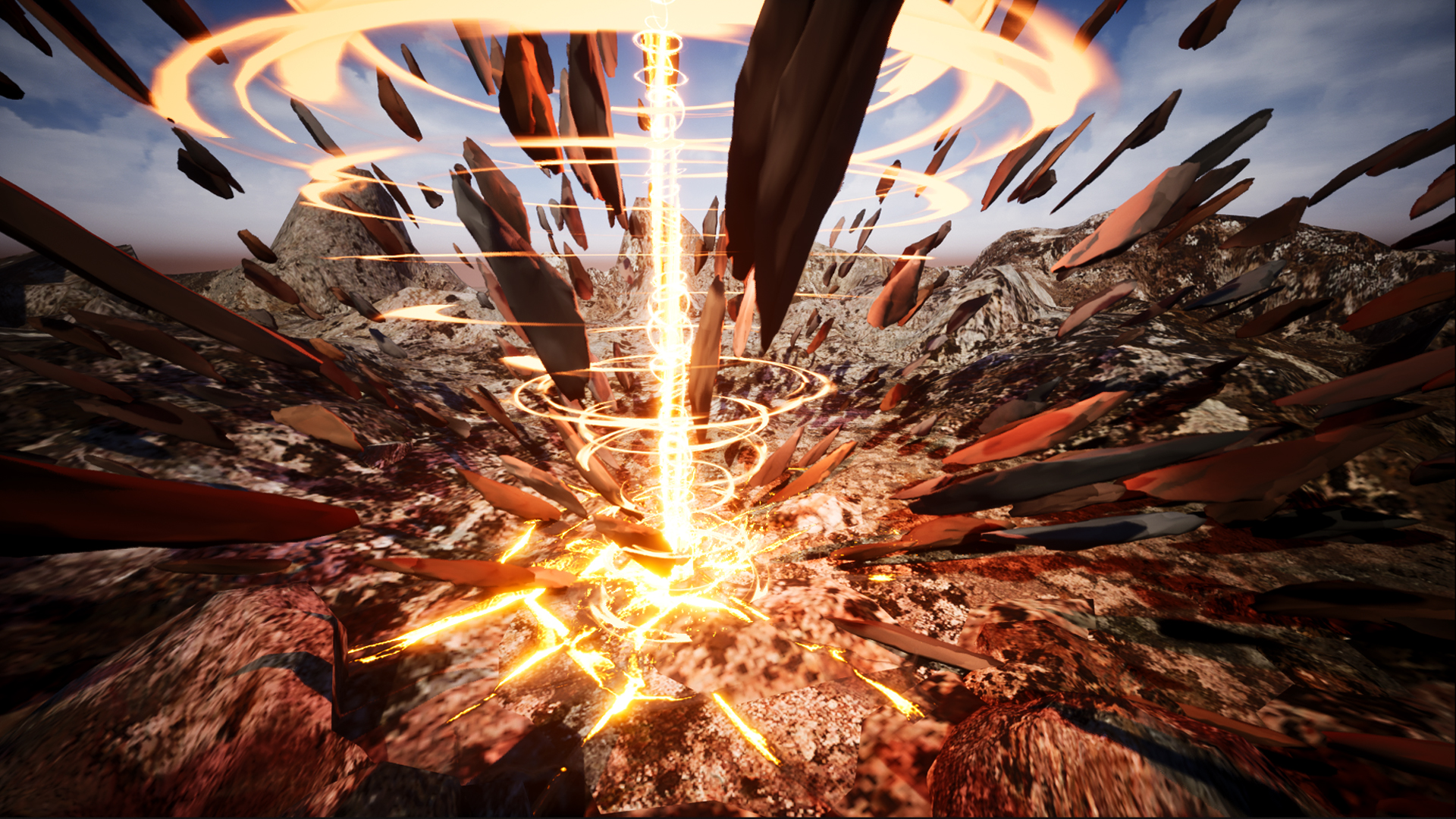
Cataclysm Crater in UE5 Niagara Tutorial | Download Files
#cghow #UE5 #UE4Niagara #gamefx #ue5niagara #ue4vfx #niagara #unrealengineniagara #realtimevfx
●Upload Your Tutorials/Work – https://cghow.com/
Purchase Effect Package From Unreal engine Marketplace –
Unreal Engine Niagara Effects in Marketplace – https://youtu.be/DF4Lb_btEus
Niagara Effects Pack in Marketplace – https://youtu.be/g6_k8T7FqHA
Unreal Engine Advanced Magical Effects in Marketplace – https://youtu.be/0Dn3GLIzhMo
Smoke in UE4 Niagara Pack01 in Unreal Engine Marketplace – https://youtu.be/38BPA_9yqJ8
UE4 Niagara Fire Pack 01 in Marketplace – https://youtu.be/PW5FL-zZoP4
UE4 Niagara Fire Pack 02 in Marketplace – https://youtu.be/fdLXPlUEzxM
UE4 Niagara Explosions Pack 02 in Marketplace – https://youtu.be/dj-XX9he4aE
Unreal Engine Niagara Effects Pack 03 in Marketplace – https://youtu.be/0kKon43I-Og
Slow Motion Explosion in UE4 Niagara Pack 04 in Marketplace – https://youtu.be/lUK1eW5zRP0
Unreal Engine Niagara Effects pack 04 in Marketplace – https://youtu.be/MihWYB31Gi4
Slow Motion Explosion in UE4 Niagara Pack 04 in Marketplace – https://youtu.be/lUK1eW5zRP0
UE4.25 Niagara Effects Pack 05 in Marketplace – https://youtu.be/sn1HIENVTDI
UE4.25 Niagara Effects Pack 06 in Marketplace – https://youtu.be/pvH_xGQ5jvs
Explosions Package in Unreal Engine Niagara Particle System – https://youtu.be/1mbqWscjUJ4
●Follow FB Page – https://www.facebook.com/cghow0/
●Join FB Group – https://www.facebook.com/groups/cghow/
●Android App – http://bit.ly/2XUnhoR
Playlists-
●Unreal Engine Niagara Tutorials – http://bit.ly/2SmPEuT
●Unreal engine VFX Tutorials -http://bit.ly/2JNXyJZ
●Unity VFX Tutorials – http://bit.ly/2XNGlKz
Intro:
- Hi guys, I’m Asif Ali and you’re watching CGHow. In today’s tutorial, I’ll show you how to create a scene in Unreal Engine 5 (UE5) Niagara. If you haven’t subscribed yet, make sure to subscribe to the channel. If you like the video, please like, share, and comment. Let’s get started!
Scene Setup:
- New Project & Reference Image:
- Start by setting up a new UE5 project and import the reference image.
- The reference is from DeviantArt; I’ll put the link in the description.
- This isn’t an exact replica, but we’ll create something similar.
- Setting the Map and Camera:
- Create a new level and a basic map.
- Apply a basic flower material with a gray color to the terrain.
- Add a Level Sequencer to animate the camera for a dynamic scene.
- Use a 20mm focal length for the camera.
Creating Effects:
- Rocks and Particles:
- Start by adding rocks as static meshes.
- Use a rock model from Quixel Bridge (download and drag into the scene).
- Apply the mesh to Niagara with the Mesh Renderer and spawn particles from the rock mesh.
- Particle Settings:
- Set the spawn rate to 500 particles for a more natural effect.
- Disable gravity and use a Sphere Location for particle spawning.
- Randomize the rotation to make the rocks appear more dynamic.
- Lighting:
- Add a Point Light to simulate realistic shadows around the particles.
- Ground Material:
- Apply a custom rock material to the ground for consistency in the scene.
Additional Details:
- Crack Effect:
- Add a texture for the ground crack and modify it for the glowing effect.
- Adjust settings for the glow to give it an orange-red color (using Black Body).
- Beam Effect:
- Duplicate the effect and create a beam using a Cylindrical Mesh.
- Apply a simple particle color for the beam.
- Set up the particle scale and randomize it for a more natural look.
Final Adjustments:
- Ring Effects:
- Use disk meshes with custom materials to create glowing rings around the beam.
- Randomize their size and rotation for variation.
- Animating the Scene:
- Set up animations in the Level Sequencer for rotation and movement.
- Adjust rotation speed for the rock particles and beams.
- Finishing Touches:
- Adjust lighting, camera angle, and mesh details for final tweaks.
- Add some rocks and rings to fill out the scene.
Conclusion:
- That’s it for this tutorial! We’ve created a dynamic scene with particles, lights, and glowing effects in Unreal Engine 5. I hope you found this tutorial helpful. Don’t forget to subscribe for more VFX tutorials!
Leave a Reply