
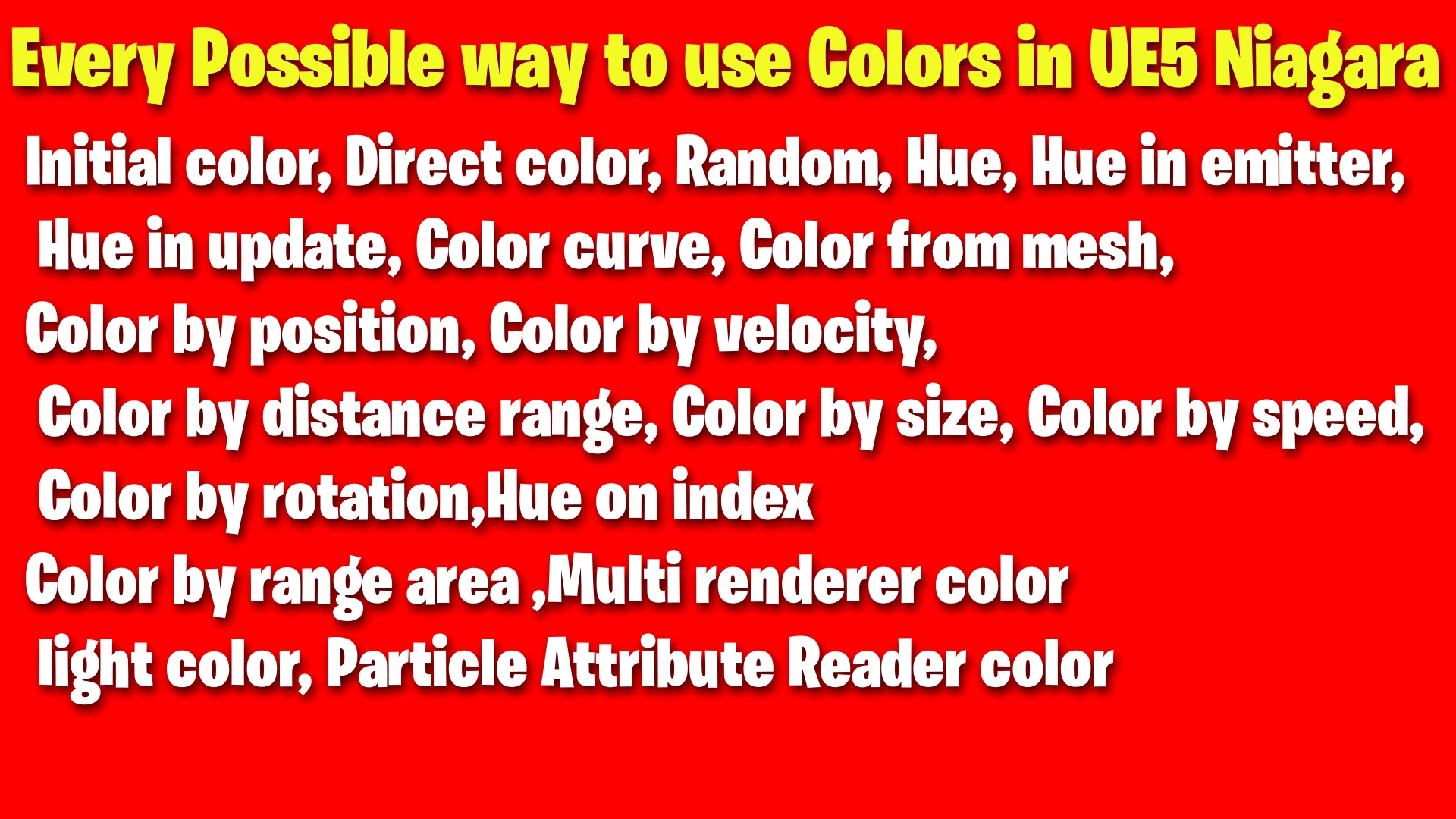

Everything you need to know about colors in ue5 niagara
Patreon- https://www.patreon.com/Ashif
NFT – https://opensea.io/CGHOW
Twitter – https://twitter.com/cghow_
👉👉 If you Liked it – http://bit.ly/2UZmiZ4
Channel Ashif – http://bit.ly/3aYaniw
Support me on – paypal.me/9953280644
initial color,
direct color,
random, hue,
hue in emitter,
hue in particle update,
color curve,
color from mesh,
color by position,
color by velocity,
color by distance range,
color by size,
color by speed,
color by rotation,
hue on index,
color by range area,
multi renderer color,
light color,
Particle attribute reader color,
#cghow #UE5 #UE4Niagara #gamefx #ue5niagara #ue4vfx #niagara #unrealengineniagara #realtimevfx
●Visit – https://cghow.com/
Unreal Engine Marketplace – https://bit.ly/3aojvAa
Artstation Store – https://www.artstation.com/ashif/store
Gumroad – https://cghow.gumroad.com/
Unreal Engine 5: Niagara – Coloring Particles Explained
This video covers various ways to control the color of particles in Niagara, Unreal Engine 5’s particle system. Here’s a breakdown of the key points:
Material Setup:
- Particles require a material with a “Particle Color” node to use color functionalities in Niagara.
- This node connects to the material’s emissive or opacity for particle rendering.
Initial Color:
- Directly set the color for all particles at spawn using the “Direct Color” option.
- Adjust the color values (red, green, blue, and alpha) to change the initial appearance.
Random Color Range:
- Define a range between two colors for random variation among particles.
- Use the “Random Range” option and set the minimum and maximum color values.
Random Hue, Saturation, and Value:
- Introduce more color variation by randomizing Hue (color spectrum), Saturation (intensity), and Value (brightness).
- Each channel (Hue, Saturation, Value, and Alpha) can be randomized independently.
Hue in Emitter:
- This option assigns a different color to each particle spawn from the emitter.
- Use a “Float” value (between 0 and 1) to control the color variation.
- Higher values create a wider range of colors for each spawn.
Hue in Update:
- This option allows color changes throughout a particle’s lifetime.
- Use the “Hue Shift” node in the “Particle Update” section to adjust the Hue value over time.
- Positive values shift towards red, while negative values shift towards green.
Color Curve:
- Create a gradient to define color changes based on a particle’s lifetime.
- The “Color Curve” node allows setting different colors and alpha values for various stages (birth, death).
- This enables fading or color transitions over time.
Color Scale:
- This option scales the initial color based on a curve, allowing fading or darkening over time.
- Use the “Scale Color” node with a curve to control the color intensity based on the particle’s lifetime.
Color from Mesh:
- This technique uses the colors from a mesh to paint particles spawned on its surface.
- Requires a “Mesh Particle From” module to spawn particles on the mesh.
- The “UV” value from the mesh is used to map the mesh’s color texture onto the particles.
Color by Position, Velocity, Size, Rotation:
- These options allow color variations based on particle properties.
- Use mathematical nodes and color blending to control color based on particle location, velocity, size, or rotation.
- For example, particles on the right side might be red, while those on the left are green (using position).
Additional Techniques:
- Color by Distance Range: Change color based on the particle’s distance from a specific point.
- Color by Execution Index: Gradually change color for each spawned particle (gradient effect).
- Multi-Render Color: Render particles with multiple colors for effects like a glowing core.
Overall:
This video provides a comprehensive overview of coloring particles in Niagara, offering various techniques to achieve diverse visual effects. By understanding these options, you can create dynamic and visually appealing particle systems in Unreal Engine 5.
Leave a Reply