

Download – https://www.patreon.com/posts/76243193
Patreon- https://www.patreon.com/Ashif
NFT – https://opensea.io/CGHOW
Twitter – https://twitter.com/cghow_
👉👉 If you Liked it – http://bit.ly/2UZmiZ4
Channel Ashif – http://bit.ly/3aYaniw
Support me on – paypal.me/9953280644
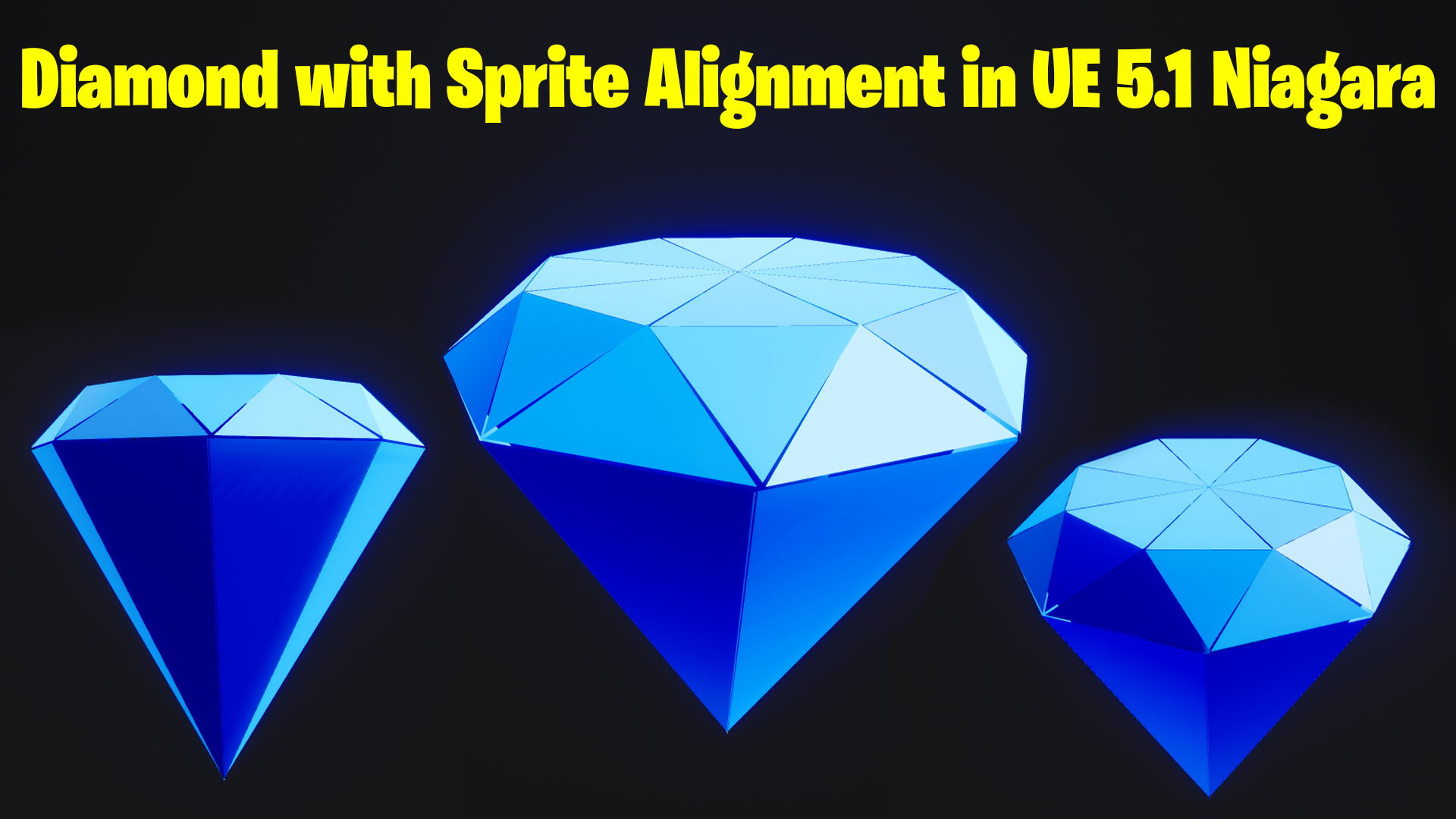
Diamond with Sprite Alignment in UE 5.1 Niagara Tutorial | Download Files
#cghow #UE5 #UE4Niagara #gamefx #ue5niagara #ue4vfx #niagara #unrealengineniagara #realtimevfx
●Visit – https://cghow.com/
Unreal Engine Marketplace – https://bit.ly/3aojvAa
Artstation Store – https://www.artstation.com/ashif/store
Gumroad – https://cghow.gumroad.com/
Hi guys, I’m Ashif Ali, and you’re watching CGHOW. In today’s video, I’m going to show you how to create a diamond shape using sprites in Unreal Engine. These are all sprites that I aligned to look like a diamond, so let’s dive into the tutorial!
[Music]
First of all, subscribe to my YouTube channel and hit the bell icon so you won’t miss any new video notifications.
Let’s get started! To begin, I created a triangle material. Here’s how you can do it:
- Texture Coordinate: Use a texture coordinate node, then mask the red channel.
- Centering the Shape: Subtract 0.5 to center it, then use the absolute value to make it positive.
- Creating the Triangle: Add a gradient to form the triangle shape.
- Adjusting the Width: Use the step node to control the width, then multiply it for further control.
I’ll also add dynamic parameters for better control, such as adjusting the width and adding particle color.
Save this material and then move to the Niagara system.
Now, let’s create the effect:
- Add a Burst: Set it to 8 particles and choose the Taurus shape for the spawn area. Adjust the radius to 100.
- Set Particle Size: Use a uniform size for particles.
- Apply Material: Use the triangle material created earlier.
- Custom Alignment: Set it to align to the mesh orientation along the Z-axis.
- Rotation: Adjust the rotation so the particles face in the same direction. Use offsets to fine-tune their placement.
Now, let’s work on layering:
- Layering the Particles: Add multiple layers of triangles and adjust the size, rotation, and position for each layer. This helps create the diamond shape.
- Randomize Colors: Add some variation to the particle colors for more dynamic visuals.
- Final Tweaks: Adjust size, rotation, and positioning to perfect the effect.
Material Adjustments: Make sure the material is not unlit to allow for some depth, which will make the shape look more realistic.
Final Touches: Add final adjustments to particle size, offset, and rotation to perfect the diamond shape.
That’s it for this tutorial! I hope you found this helpful. Thanks for watching, and keep learning! Bye!
Leave a Reply