

Download – https://cghow.gumroad.com/l/awfxdx
Patreon- https://www.patreon.com/Ashif
NFT – https://opensea.io/CGHOW
Twitter – https://twitter.com/cghow_
👉👉 If you Liked it – http://bit.ly/2UZmiZ4
Channel Ashif – http://bit.ly/3aYaniw
Support me on – paypal.me/9953280644
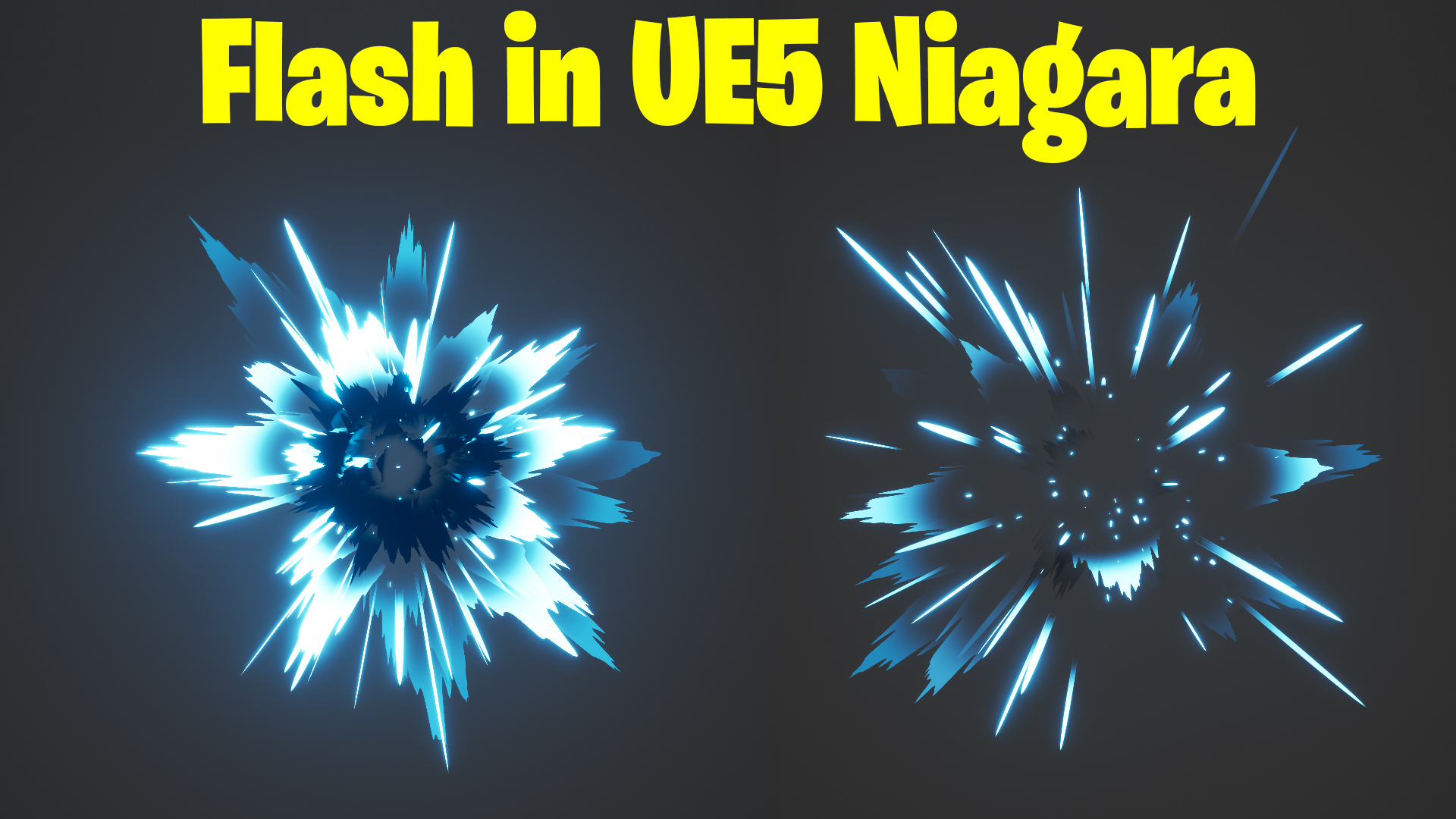
Flash in UE5 Niagara Tutorial | Download Files
#cghow #UE5 #UE4Niagara #gamefx #ue5niagara #ue4vfx #niagara #unrealengineniagara #realtimevfx
●Visit – https://cghow.com/
Unreal Engine Marketplace – https://bit.ly/3aojvAa
Artstation Store – https://www.artstation.com/ashif/store
Gumroad – https://cghow.gumroad.com/
Hi guys, I’m Ashif Ali, and you’re watching CGHOW!
In today’s video, I’ll show you how to create a flash effect in Unreal Engine 5 using Niagara. If you haven’t subscribed to my YouTube channel yet, please do so, and don’t forget to hit the bell icon to get notifications for all my new videos. If you like this video, like, share, and comment, and let’s dive into the tutorial!
Steps Overview
- Create Material:
- First, we need to create the material. In the content browser, type
M/to create a new material. - Set the material properties to Additive, Unlit, and Two-Sided.
- First, we need to create the material. In the content browser, type
- Design the Arrow:
- To create an arrow shape, we will use a texture coordinate and separate the masks for the X and Y axes.
- Multiply them together to form a diagonal effect, then adjust the masks using absolute values to get the arrow shape.
- Add Spikes:
- To add random spikes to the arrow, we apply a noise texture to distort the UV coordinates.
- We will control the distortion using dynamic parameters for Tiling and Distortion along the X and Y axes.
- Fade Effect:
- To make the arrow fade from the bottom, use a texture coordinate mask and adjust the gradient with a power node to control the fade amount.
- Create Niagara System:
- Once the material is ready, create a Niagara system and apply the material.
- You can make two instances of the material: one for a brighter flash and another for a darker one.
- Set Particle Properties:
- In the Niagara system, adjust the particle size, life duration, and color to achieve the desired flash effect.
- Set random values for Tiling and Distortion for a dynamic and unpredictable effect.
- Use the Custom Alignment for particles to control their orientation, and set their velocity to make them face outward.
- Additional Enhancements:
- Add custom velocity settings and fine-tune the life, size, and color values to achieve a more dramatic effect.
- You can add a scale color curve to adjust how the particles fade out over time.
- Final Touches:
- For extra visual appeal, we can introduce radial distortions, add some random particle motion, and tweak the gravity and drag values to control the final look.
Conclusion
That’s it! You now have a flash effect using a single material with Niagara in Unreal Engine 5. The effect is simple but powerful and can be customized to fit various uses, such as explosion effects, dynamic flashes, or light bursts.
Thanks for watching, and keep in mind: If you found this tutorial helpful, don’t forget to like, comment, and subscribe. See you in the next video!
Leave a Reply