

Download – https://www.patreon.com/posts/62374626
Ref – https://bit.ly/3gz3hnG
NFT – https://opensea.io/CGHOW
👉👉 If you Liked it – http://bit.ly/2UZmiZ4
Channel Ashif – http://bit.ly/3aYaniw
Support me on – https://www.patreon.com/Ashif
Support me on – paypal.me/9953280644
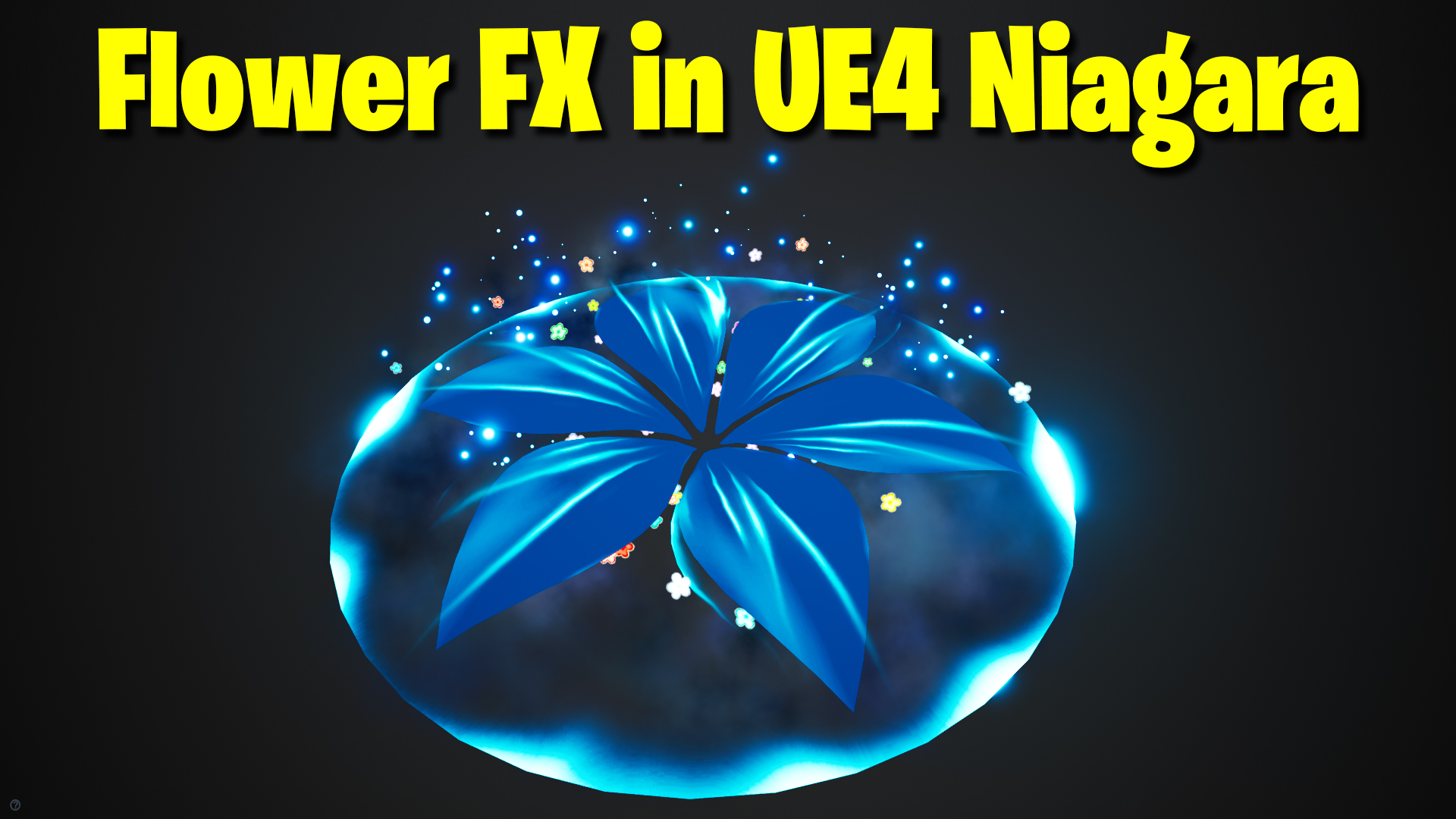
Flower FX in UE4 Niagara Tutorial | Download Files
#cghow #UE5 #UE4Niagara #gamefx #ue5niagara #ue4vfx #niagara #unrealengineniagara #realtimevfx
●Upload Your Tutorials/Work – https://cghow.com/
Purchase Effect Package From Unreal engine Marketplace –
Unreal Engine Niagara Effects in Marketplace – https://youtu.be/DF4Lb_btEus
Niagara Effects Pack in Marketplace – https://youtu.be/g6_k8T7FqHA
Unreal Engine Advanced Magical Effects in Marketplace – https://youtu.be/0Dn3GLIzhMo
Smoke in UE4 Niagara Pack01 in Unreal Engine Marketplace – https://youtu.be/38BPA_9yqJ8
UE4 Niagara Fire Pack 01 in Marketplace – https://youtu.be/PW5FL-zZoP4
UE4 Niagara Fire Pack 02 in Marketplace – https://youtu.be/fdLXPlUEzxM
UE4 Niagara Explosions Pack 02 in Marketplace – https://youtu.be/dj-XX9he4aE
Unreal Engine Niagara Effects Pack 03 in Marketplace – https://youtu.be/0kKon43I-Og
Slow Motion Explosion in UE4 Niagara Pack 04 in Marketplace – https://youtu.be/lUK1eW5zRP0
Unreal Engine Niagara Effects pack 04 in Marketplace – https://youtu.be/MihWYB31Gi4
Slow Motion Explosion in UE4 Niagara Pack 04 in Marketplace – https://youtu.be/lUK1eW5zRP0
UE4.25 Niagara Effects Pack 05 in Marketplace – https://youtu.be/sn1HIENVTDI
UE4.25 Niagara Effects Pack 06 in Marketplace – https://youtu.be/pvH_xGQ5jvs
Explosions Package in Unreal Engine Niagara Particle System – https://youtu.be/1mbqWscjUJ4
●Follow FB Page – https://www.facebook.com/cghow0/
●Join FB Group – https://www.facebook.com/groups/cghow/
●Android App – http://bit.ly/2XUnhoR
Playlists-
●Unreal Engine Niagara Tutorials – http://bit.ly/2SmPEuT
●Unreal engine VFX Tutorials -http://bit.ly/2JNXyJZ
●Unity VFX Tutorials – http://bit.ly/2XNGlKz
Introduction
Hi guys, I am Marcifali, and you’re watching CJ Video. Today, I’ll be showing you how I created this beautiful flower effect in Unreal Engine (UE4). This is the reference I followed — it’s not the exact effect I recreated, but we took inspiration from it. I’ll drop the link in the description below. If you haven’t subscribed to my YouTube channel yet, please do so! And if you like this video, don’t forget to like, share, and comment. Thanks for watching! Let’s dive into the tutorial! [Music]
Call to Action
Before we start, make sure to subscribe to my channel and click on the bell icon to get notified about all my new videos.
Step-by-Step Tutorial:
- Setting Up the Project
- I’ve created an empty folder called Flower FX1. This is the reference I found on Twitter (link in the description). The reference was made in Unity, but today, I’ll be recreating something similar in Unreal Engine.
- Creating the Leaf
- First, we need to create the leaf. I’ll quickly create it in Maya using a plane and reducing its vertices.
- After scaling and smoothing the plane, I’ll move the vertices and add soft selection for bending the leaf into the desired shape. The UVs are straight due to the planar creation, but we’ll adjust them for better texture alignment.
- Exporting and Importing the Mesh
- After shaping the leaf, I’ll export it and import it into Unreal Engine.
- Setting Up Materials
- I’ll create a material called M_Leaf and apply a blur noise texture for randomness. I’ll adjust the tiling to a small value (0.4) to get a larger pattern and multiply it by the particle color for opacity.
- The material will be unlit, two-sided for transparency, and applied to the leaf mesh.
- Niagara Particle System
- I’ll create a Niagara FX system and set the spawn rate to 6 with a life of 2 seconds. The particles will spawn in a circular formation (Torus location) with low radius and scale.
- Next, I’ll rotate them randomly around the center using a mesh rotation and adjust the values to achieve the desired effect.
- Fine-Tuning the Effect
- For opacity, I’ll apply a clamp function to prevent the particles from becoming completely black.
- The leaf will rotate slightly, scale up, and fade out gradually using a curve for the opacity.
- Adding the Aura Layer
- For the second layer, I’ll create an aura effect that pans over the leaves, giving it a glowing look. I’ll adjust the tiling and use dynamic parameters to randomize the tiling for variation.
- Creating the Smoke Effect
- I’ll add a basic smoke effect using a 4×4 cloud texture. The particles will spawn with randomized velocity, and I’ll adjust the size and life to create a subtle smoke layer over the leaves.
- Adding Sparkles and Flowers
- For additional flair, I’ll duplicate the leaf material and change it to a sparkle effect, using a bright material with a random size and velocity for the particles.
- I’ll also add small flowers by using a flower texture and applying a material to it. The flowers will be randomized in size and color.
- Creating the Shockwave Effect
- Finally, I’ll create a shockwave effect using a disk mesh and applying the shockwave material. I’ll adjust the power and scale to create the desired shockwave effect that fades over time.
Conclusion:
And that’s how we created this flower effect in Unreal Engine! It’s not the exact reference, but we’ve taken inspiration and created something beautiful. I hope you learned something new today. If you have any questions, feel free to leave a comment below. Thanks for watching, and keep learning! Bye-bye!
Final Adjustments:
- I made the flower color a bit less bright to improve its appearance.
- The flowers were not rotating, so I adjusted their rate to ensure they spin properly over their lifespan.
Leave a Reply