
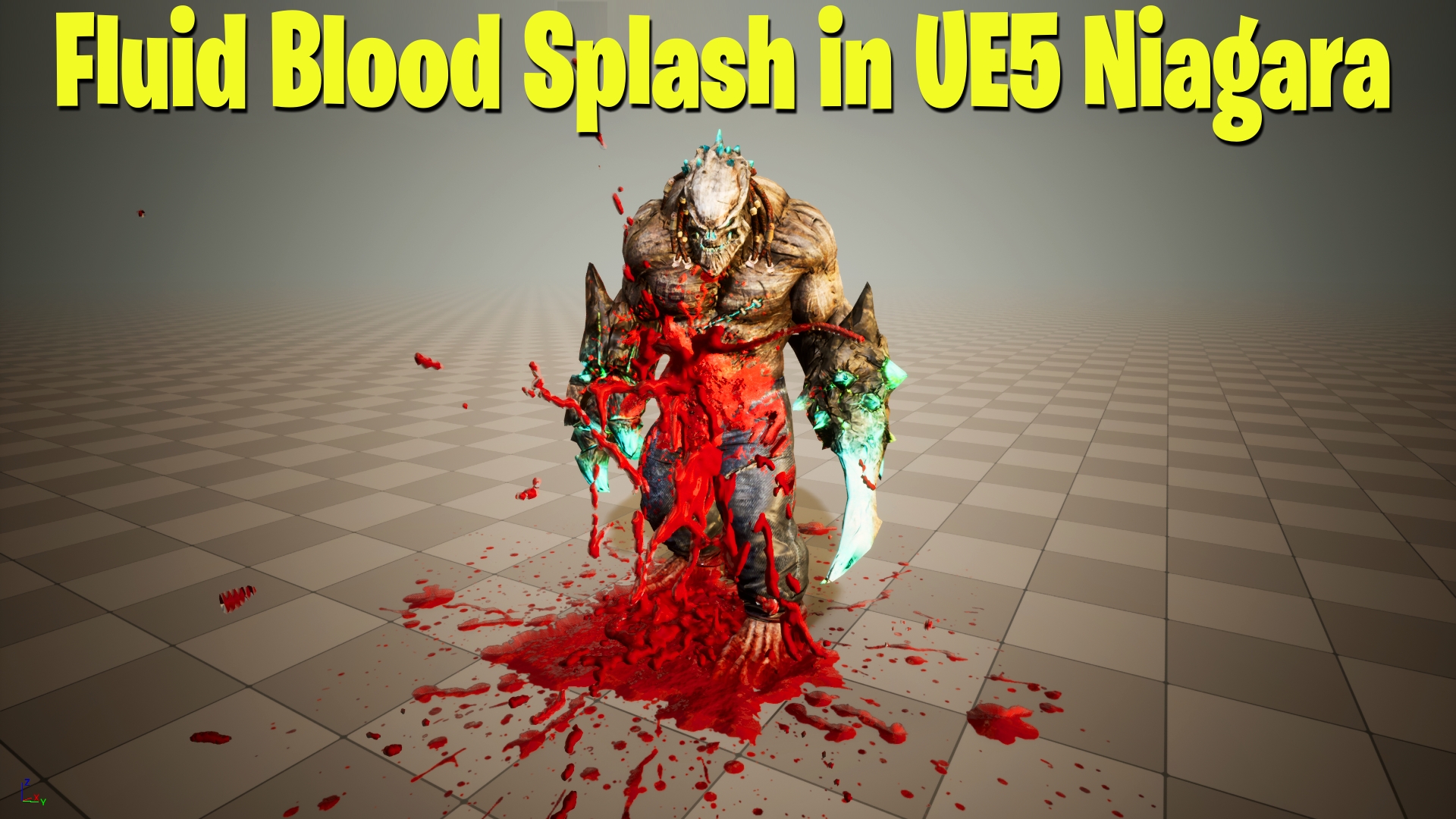

Fluid Blood Splash VFX in UE5 Niagara
This tutorial shows how to create a blurred blood splash with Niagara Fluids and curl noise in Unreal Engine 5, and the project files are available to download.
Use it for hit reactions, gore effects and paint splashes, and see the related posts below for more fluid effects.
More fluid effects: Flip Fluid in UE5 Niagara · Chocolate Flip Fluid in UE5 Niagara · Sparse Fluid in UE5 Niagara
Download – https://www.patreon.com/posts/70178949?pr=true
Patreon- https://www.patreon.com/Ashif
NFT – https://opensea.io/CGHOW
Twitter – https://twitter.com/cghow_
👉👉 If you Liked it – http://bit.ly/2UZmiZ4
Channel Ashif – http://bit.ly/3aYaniw
Support me on – paypal.me/9953280644
Fluid Blood Splash in UE5 Niagara Tutorial | Download Files
#cghow #UE5 #UE4Niagara #gamefx #ue5niagara #ue4vfx #niagara #unrealengineniagara #realtimevfx
●Visit – https://cghow.com/
Unreal Engine Marketplace – https://bit.ly/3aojvAa
Artstation Store – https://www.artstation.com/ashif/store
Gumroad – https://cghow.gumroad.com/
Video Title: Create a Blurred Splash Effect with Fluid in UE5 Niagara | Full Tutorial
Description:
Hi guys, I’m Asif Ali and you’re watching CGHOW! In this tutorial, I’ll show you how to create a stunning blurred splash effect using Niagara and Fluid simulation in Unreal Engine 5. We will go through the process of creating the splash from scratch, covering key settings for spawn, velocity, and material. If you haven’t subscribed to my channel yet, please subscribe! Don’t forget to like, share, and comment if you like the video. Let’s dive into the tutorial!
[Music]
Make sure to subscribe to my channel and click the bell icon to receive all new video notifications!
Steps to Create the Blurred Splash Effect:
- Setting Up the Niagara System:
- Create a new map and folder for organizing the project files.
- Enable the Fluid Plugin and restart the engine.
- Create a new Niagara system from the template and select 3D Flip Splash. Drag it into the viewport to view the effect.
- Adjusting the Splash Frequency:
- Set the splash to repeat every 2 seconds by making the loop infinite with a 2-second interval.
- Modify the Bounding Box Size (e.g., 400 x 400 x 400) to control the splash’s area of effect.
- Positioning and Velocity Settings:
- Set the Spawn Location to the center by adjusting the Sphere Offset to 200.
- Randomize the velocity slightly with values like 20 and 0 to create varied splash patterns.
- Adding Curl Noise for Streaks:
- In the Spawn section, use Curl Noise with a strength of 1000 to introduce dynamic movement to the splash. Set random values for the panning speed.
- Adjusting Gravity:
- Reduce gravity to -500 in the Particle Update section to make the splash fall more naturally and not too fast.
- Setting the Material:
- Change the splash color to red by duplicating the existing material and modifying the base color.
- Adjust the Opacity to 0.8 and add a bit of Metallic or Specular for more realism.
- Increasing the Spawn Rate:
- Adjust the Spawn Rate to make the splash more intense. For example, set it to a random value between 5000 and 20000.
- Collision with Ground:
- Enable the collision to the ground by opening all sides in the Summary, but keep the bottom closed. This ensures the splash collides with the ground.
- Adjusting Particle Smoothness:
- To make the splash smoother, adjust the Smoothness parameter in the Summary. A value of 0 creates sharper particles, while 2 smooths them out for a more liquid-like appearance.
- Adding Drag for Fluid Effects:
- While experimenting, you may add Drag to reduce the speed of particles. However, be mindful that drag might conflict with other settings.
- Using the Decal:
- You can create a blood splash decal using a previously made material. If you want to learn how to make decals from scratch, check out my earlier tutorial on creating a blood decal material.
Trendy Tags: #UnrealEngine5 #Niagara #VFX #FluidSimulation #SplashEffect #UE5Tutorial #GameDev #CurlNoise #RedSplash #FluidEffects
End of Video:
Thanks for watching! I hope this tutorial helped you understand how to create a blurred splash effect with Niagara. Keep experimenting with these techniques, and I’ll see you in the next video!
Leave a Reply