

Download – https://www.patreon.com/posts/89867291
Patreon- https://www.patreon.com/Ashif
NFT – https://opensea.io/CGHOW
Twitter – https://twitter.com/cghow_
👉👉 If you Liked it – http://bit.ly/2UZmiZ4
Channel Ashif – http://bit.ly/3aYaniw
Support me on – paypal.me/9953280644
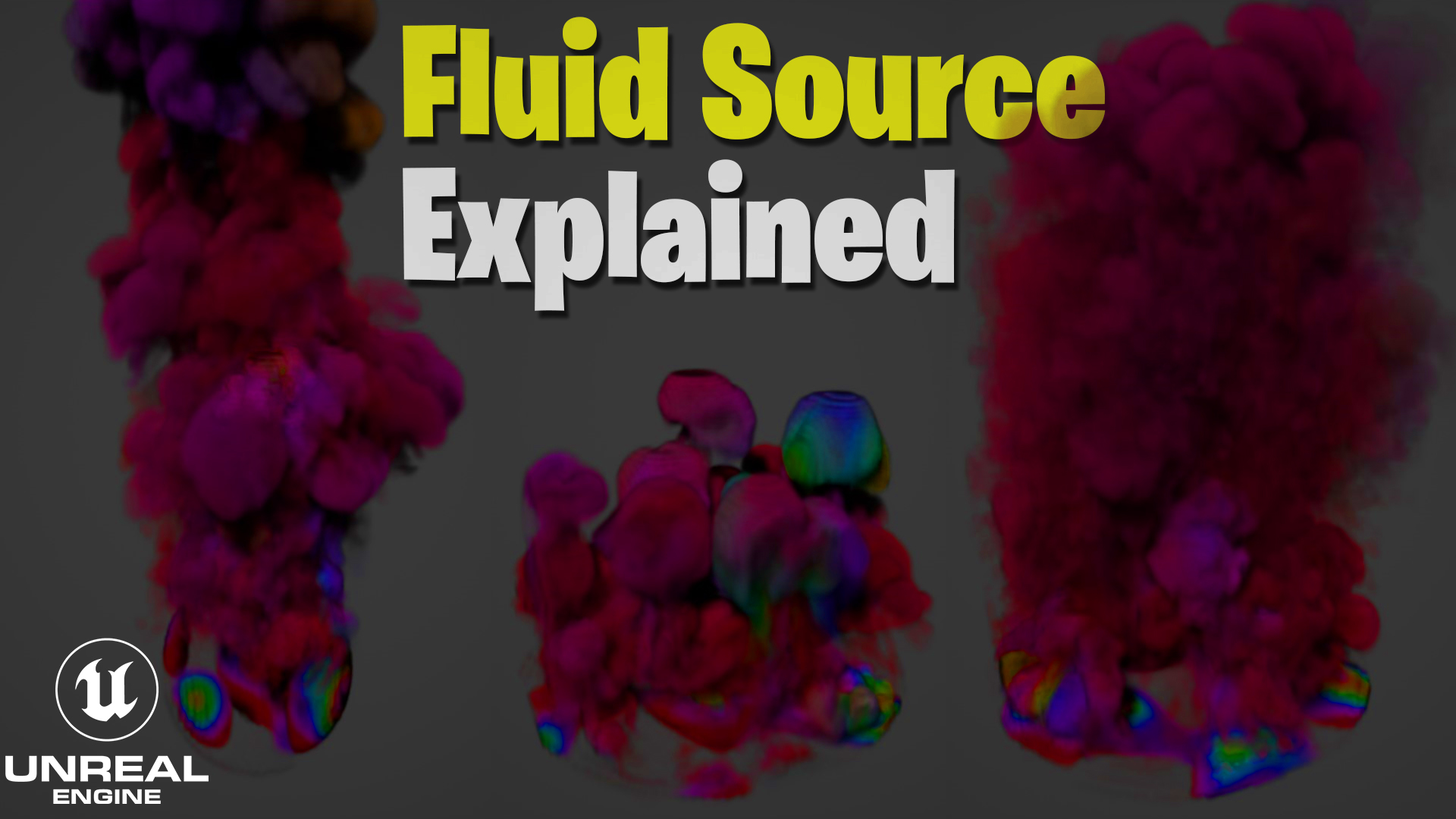
Fluid Source Explained in UE5 Niagara | Download Files
#cghow #UE5 #UE4Niagara #gamefx #ue5niagara #ue4vfx #niagara #unrealengineniagara #realtimevfx
●Visit – https://cghow.com/
Unreal Engine Marketplace – https://bit.ly/3aojvAa
Artstation Store – https://www.artstation.com/ashif/store
Gumroad – https://cghow.gumroad.com/
Description:
In this quick tutorial, Ashif Ali explains how to access and manipulate the settings of the source for fluid emissions in Unreal Engine 5.3 using Niagara. He covers important settings such as adjusting the radius and position of the sphere source, controlling density and temperature for more dynamic effects, and how to manipulate noise patterns and color to create diverse fluid effects. This video helps you understand the source settings in depth to create more customizable and realistic fluid effects in your game projects.
Key Points:
- Understanding the Source Sphere: The default emitter in Niagara uses a sphere, which can be customized for fluid emission.
- Adjusting the Radius: You can change the radius of the sphere to control the area from which the fluid is emitted.
- Scaling the Source: Use uniform scale settings to scale the sphere along different axes for non-spherical fluid sources.
- Density and Temperature: Adjust the density to control the amount of fluid emitted and temperature to introduce fire effects.
- Initial Velocity and Noise: Control the movement of the fluid using initial velocity and adjust noise settings for animated patterns.
- Color Customization: Use the Hue and saturation settings to control the color of the fluid and create diverse visual effects based on the noise pattern.
- Enabling Color in Simulation: Turn on the color option in the simulation to reflect the color settings in the source particle.
- Using Noise Patterns: Adjust frequency, scale, and layers of noise for more complex and dynamic fluid patterns.
Tags:
#UnrealEngine #Niagara #FluidEffects #VFX #GameDev #UE5 #ParticleSystems #NiagaraTutorial #SourceSettings #UnrealEngineTutorial #CGHOW
Additional Notes:
- The noise pattern can be adjusted to create diverse, animated fluid effects. Higher values increase the speed of animation, while reducing values slow it down.
- If you want a more vibrant effect, adjust the saturation and hue to control the fluid’s overall color intensity.
- You can combine various settings like initial velocity, noise frequency, and color modulation to create more complex fluid simulations.
Leave a Reply