

Download – https://cghow.gumroad.com/l/ifXvt
or – https://www.artstation.com/a/7886281
👉👉 If you Liked it – http://bit.ly/2UZmiZ4
Channel Ashif – http://bit.ly/3aYaniw
Support me on – https://www.patreon.com/Ashif
Support me on – paypal.me/9953280644
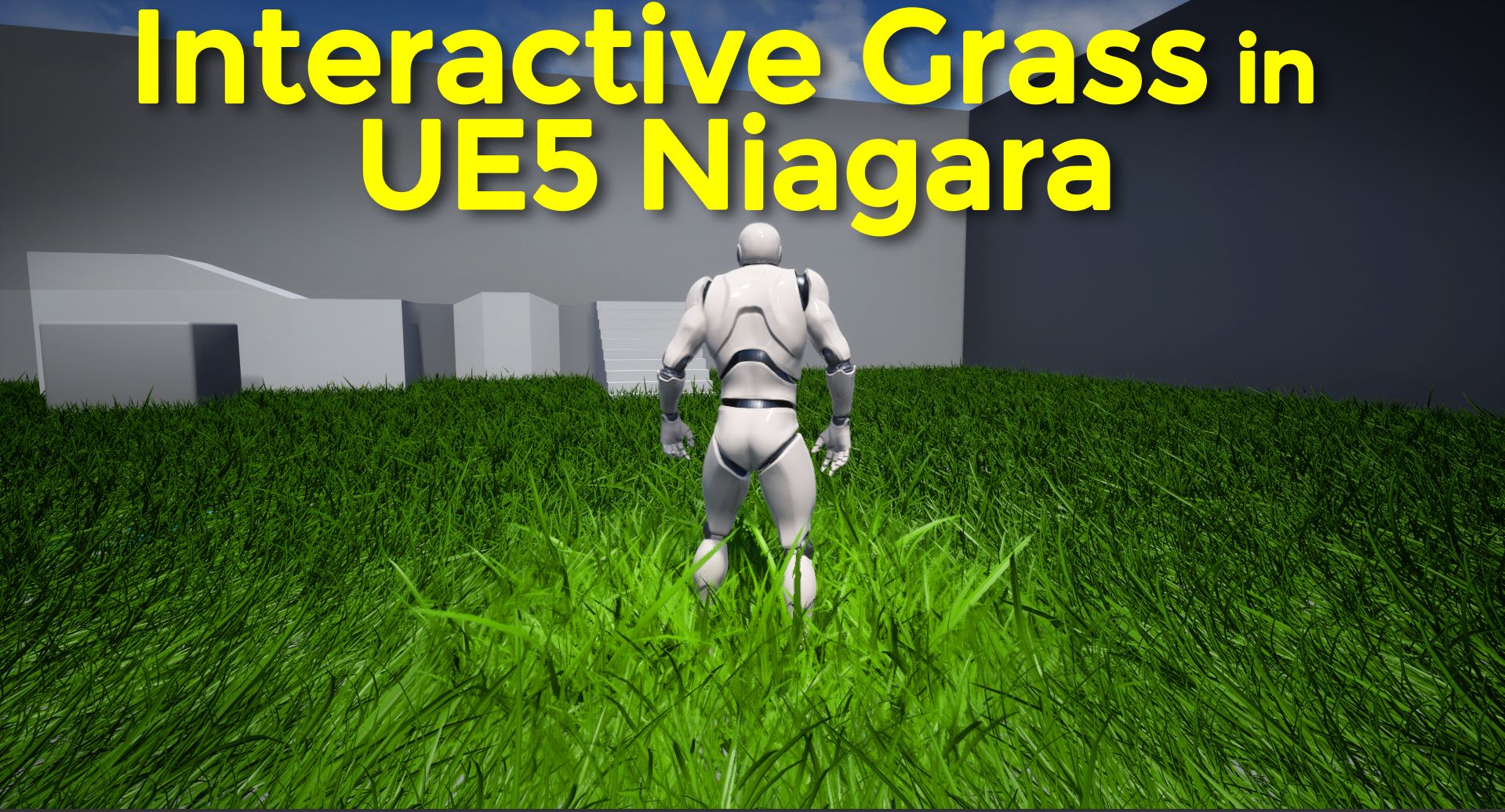
Interactive Grass in UE5 Niagara Tutorial | Download Project Files
#cghow #UE5 #UE4Niagara #gamefx #ue4vfx #ue4fx #niagara #ue4niagara #unrealengineniagara #unrealenginevfxtutorials
●Upload Your Tutorials/Work – https://cghow.com/
Purchase Effect Package From Unreal engine Marketplace –
Unreal Engine Niagara Effects in Marketplace – https://youtu.be/DF4Lb_btEus
Niagara Effects Pack in Marketplace – https://youtu.be/g6_k8T7FqHA
Unreal Engine Advanced Magical Effects in Marketplace – https://youtu.be/0Dn3GLIzhMo
Smoke in UE4 Niagara Pack01 in Unreal Engine Marketplace – https://youtu.be/38BPA_9yqJ8
UE4 Niagara Fire Pack 01 in Marketplace – https://youtu.be/PW5FL-zZoP4
UE4 Niagara Fire Pack 02 in Marketplace – https://youtu.be/fdLXPlUEzxM
UE4 Niagara Explosions Pack 02 in Marketplace – https://youtu.be/dj-XX9he4aE
Unreal Engine Niagara Effects Pack 03 in Marketplace – https://youtu.be/0kKon43I-Og
Slow Motion Explosion in UE4 Niagara Pack 04 in Marketplace – https://youtu.be/lUK1eW5zRP0
Unreal Engine Niagara Effects pack 04 in Marketplace – https://youtu.be/MihWYB31Gi4
Slow Motion Explosion in UE4 Niagara Pack 04 in Marketplace – https://youtu.be/lUK1eW5zRP0
UE4.25 Niagara Effects Pack 05 in Marketplace – https://youtu.be/sn1HIENVTDI
UE4.25 Niagara Effects Pack 06 in Marketplace – https://youtu.be/pvH_xGQ5jvs
Explosions Package in Unreal Engine Niagara Particle System – https://youtu.be/1mbqWscjUJ4
●Follow FB Page – https://www.facebook.com/cghow0/
●Join FB Group – https://www.facebook.com/groups/cghow/
●Android App – http://bit.ly/2XUnhoR
Playlists-
●Unreal Engine Niagara Tutorials – http://bit.ly/2SmPEuT
●Unreal engine VFX Tutorials -http://bit.ly/2JNXyJZ
●Unity VFX Tutorials – http://bit.ly/2XNGlKz
Title: Interactive Grass with Character in Unreal Engine 5 Niagara
[Introduction] Hi guys, I’m Asif Ali and you’re watching CGHOW. In today’s video, I’ll show you how I created interactive grass with a character in Unreal Engine 5 using Niagara. Let’s dive into the process!
[Tutorial Start]
- Project Setup
- I started with a fresh project in Unreal Engine 5 and imported a grass asset with texture.
- I edited the material to make it two-sided (because by default, it wasn’t).
- I scaled the grass to a proper size (around 50) so it’s clearly visible.
- Organizing the Assets
- Created a folder for the grass and moved the assets into it.
- Set up a Niagara emitter and chose the “Fountain” template to customize it for the grass.
- Niagara Setup
- Spawned 500 particles with a constant life of 5 seconds and added the mesh renderer.
- Applied the grass mesh to the renderer and adjusted the spawning area using a cylinder location.
- Set the spawn area dimensions to get a decent spread.
- Testing the Scale with a Character
- I placed a third-person character in the scene to check the grass scale relative to the character.
- Adjusted the size using random uniform values for proper scaling.
- Randomizing Rotation
- Applied random rotation to the grass using the mesh’s initial rotation settings to make it look natural.
- Expanding the Grass Area
- Changed the spawning area to a larger box to spread the grass over a larger area.
- Increased the spawn rate to 20,000 particles for more density.
[Interactive Grass Setup]
- Grass Interaction with Character
- To make the grass react when the character moves, I used a “Scratch Module” to create an area of effect.
- Created a range-based system to trigger color and size changes for the grass when the character enters the range.
- Blueprint Setup
- Set up the level blueprint to track the character’s position and pass that data to the Niagara system.
- The grass particles change color and scale based on the character’s movement.
- Debugging Offsets
- I noticed some offset issues, so I added a reference point (an arrow component) to resolve the positioning problem.
- Fine-Tuning the Grass Behavior
- I inverted the direction for the grass to “move away” from the character.
- Adjusted the particle size and used color blending (green to yellow) based on proximity.
[Final Results]
- Now, when the character moves, the grass interacts by changing color and scale.
- The grass looks more dynamic and reactive, enhancing the visual realism.
[Conclusion] That’s it for today’s tutorial on creating interactive grass in Unreal Engine 5 with Niagara. I hope you found this helpful!
Don’t forget to like, comment, and subscribe to my YouTube channel for more VFX tutorials. Keep learning and stay creative!
Thanks for watching, and see you in the next video!
Leave a Reply