

Support me on – https://www.patreon.com/Ashif
Support me on – paypal.me/9953280644
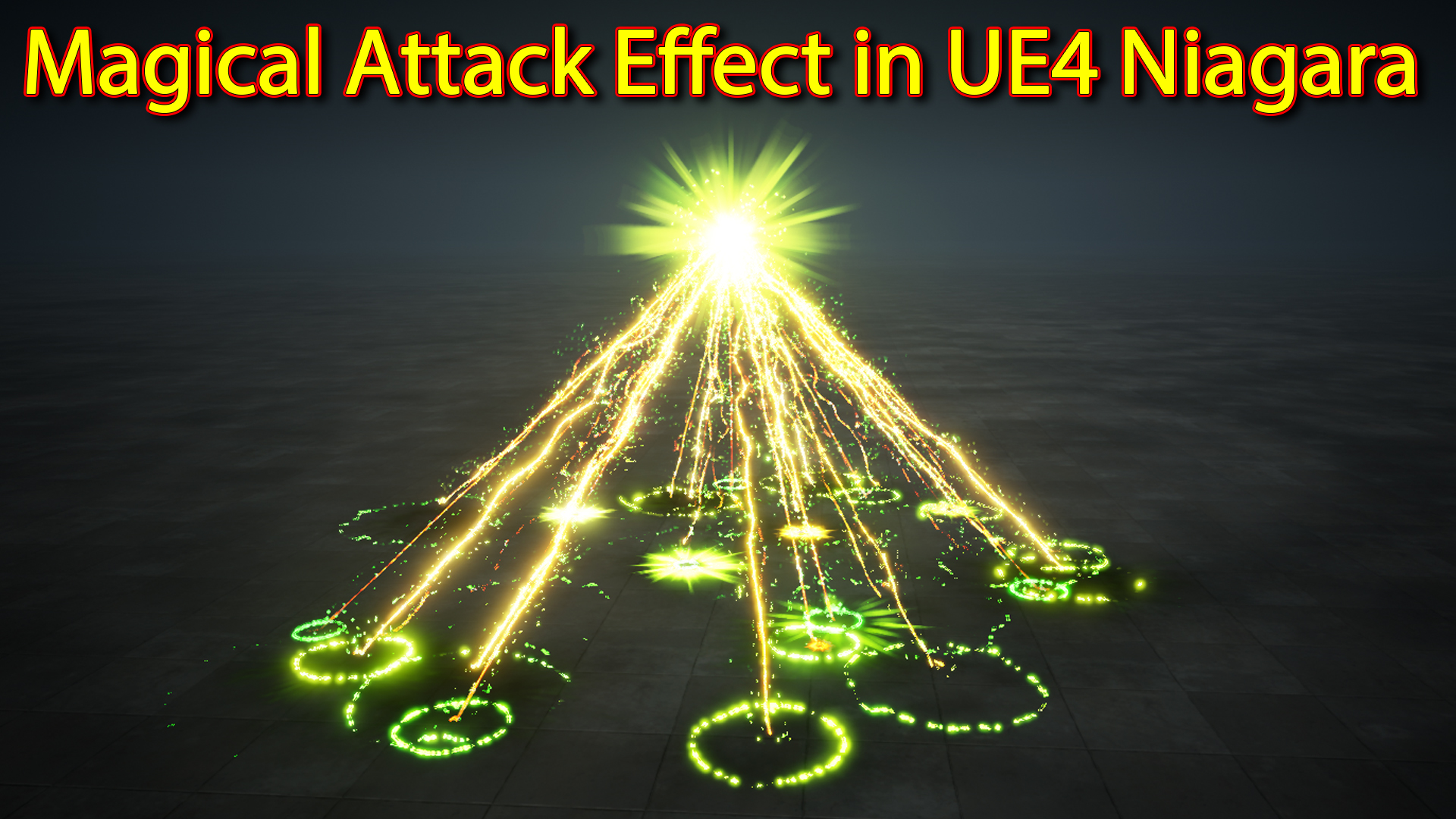
Hi guys today i have created this simple magical attack effect in unreal engine Niagara. this tutorial is from scratch step by step so i hop you will enjoy this video and learn something from this. i used very simple material for this effect still this looks cool. so basically you will learn some tips and trick to make effect quickly like i make.
#cghow #RealtimeVFX #UE4Niagara #gamefx #ue4vfx #ue4fx #niagara #unrealengineniagara #unrealenginevfxtutorials
●Upload Your Tutorials/Work – https://cghow.com/
…………………………………………………………………………………………………………
Purchase Effect Package From Unreal engine Marketplace –
●Niagara Effects Pack – http://bit.ly/2LWgZTx
●Advanced Magical FX – http://bit.ly/2XQYyXL
……………………………………………………………………………………………………………………………………
●Patreon – https://www.patreon.com/Ashif
……………………………………………………………………………………………………………………………………
●Follow FB Page – https://www.facebook.com/cghow0/
●Join FB Group – https://www.facebook.com/groups/cghow/
……………………………………………………………………………………………………………………………………
●Android App – http://bit.ly/2XUnhoR
……………………………………………………………………………………………………………………………………
Playlists-
●Unreal Engine Niagara Tutorials – http://bit.ly/2SmPEuT
●Unreal engine VFX Tutorials -http://bit.ly/2JNXyJZ
●Unity VFX Tutorials – http://bit.ly/2XNGlKz
……………………………………………………………………………………………………………………………………
●Discussion & Help Forum – http://bit.ly/2Lo0Er7
……………………………………………………………………………………………………………………………………


Magical Attack Effect in Unreal Engine: Step-by-Step Guide
In this video tutorial, I walk you through how to create a random magical attack effect using Unreal Engine’s Niagara VFX system. Let’s dive into the steps to make your own stunning magical attack effect!
Key Points:
- Creating the Basic Emitter:
- Start by creating a blank map and folder for your effect.
- Add an empty emitter and name it Magical Attack.
- Spawn particles using the Spawn Bursts node.
- Adding Flash Effect:
- Create a Flash Material (M01) with a custom texture.
- Apply the material to the emitter and tweak its size.
- Use Additive Unlit blending mode and connect it with particle color.
- Random Rotation and Size:
- Apply random initial rotation and rate, along with rotation randomness for particle movement.
- Adjust the size for more dramatic effects, making the particle bigger to fill the space.
- Particle Life and Color Animation:
- Set particle life to 2 seconds and use a curve for fading in and out.
- Make particles change color from green to yellow and back to green.
- Add Size Curve to control the particle’s scaling speed.
- Creating Glow and Center Particles:
- Duplicate the flash material and create a Glow effect using radial materials.
- Implement Curl Noise for random movement, and use Sphere Location for particle placement.
- Projectile Effect:
- Duplicate the emitter and adjust it to create projectiles.
- Use Cone Velocity for particles to move towards the ground.
- Add Collision and Kill Particle to stop particles when they hit the ground.
- Colliding Particles and Impact Flash:
- Duplicate the flash emitter for an Impact Flash on the ground.
- Add Collision Events to trigger when particles hit the ground and apply Custom Alignment for correct particle facing.
- Use a Shockwave Texture for the ground impact flash.
- Creating Hit Marks:
- Duplicate the flash emitter to create Hit Marks on the ground with a different texture.
- Adjust the Opacity Curve to make the mark fade over time.
- Adding Particle Trails:
- Duplicate and create Particle Trails for visual enhancement.
- Adjust Spawn Rate and Curl Noise for realistic trail effects.
- Creating Rings on the Ground:
- Create Orbiting Particles for the ground rings effect.
- Use Velocity from Point to make particles spread out from the center.
- Add Curl Noise for randomness and adjust Life for shorter duration.
Additional Notes:
- Optimizing Effects:
- Fine-tune particle size, color, and life for smoother and more immersive results.
- Use Dynamic Parameters to make the textures and effects evolve over time, such as the eroding texture for hit marks.
- Tips for VFX Artists:
- Use Duplication: As seen in this tutorial, duplicating and modifying emitters helps speed up your workflow and maintain consistency across similar effects.
- Experiment with Values: Don’t be afraid to tweak values like spawn rates, velocity, and size to achieve different visual results.
- Use the Collision System: Proper collision detection will ensure your particles interact with the world realistically, especially for impact-based effects like the one demonstrated here.
Trendy Tags:
#UnrealEngine #NiagaraVFX #MagicalAttack #VFXTutorial #UnrealEngineVFX #ParticleEffects #GameVFX #VFXArtist #UnrealEngineTutorial
Leave a Reply