

Download – https://www.patreon.com/posts/73446570
Patreon- https://www.patreon.com/Ashif
NFT – https://opensea.io/CGHOW
Twitter – https://twitter.com/cghow_
👉👉 If you Liked it – http://bit.ly/2UZmiZ4
Channel Ashif – http://bit.ly/3aYaniw
Support me on – paypal.me/9953280644
Project Moving Grid Lines in UE5 Niagara Tutorial | Download Files
#cghow #UE5 #UE4Niagara #gamefx #ue5niagara #ue4vfx #niagara #unrealengineniagara #realtimevfx
●Visit – https://cghow.com/
Unreal Engine Marketplace – https://bit.ly/3aojvAa
Artstation Store – https://www.artstation.com/ashif/store
Gumroad – https://cghow.gumroad.com/
How to Create Moving Grid Lines in UE5 Niagara
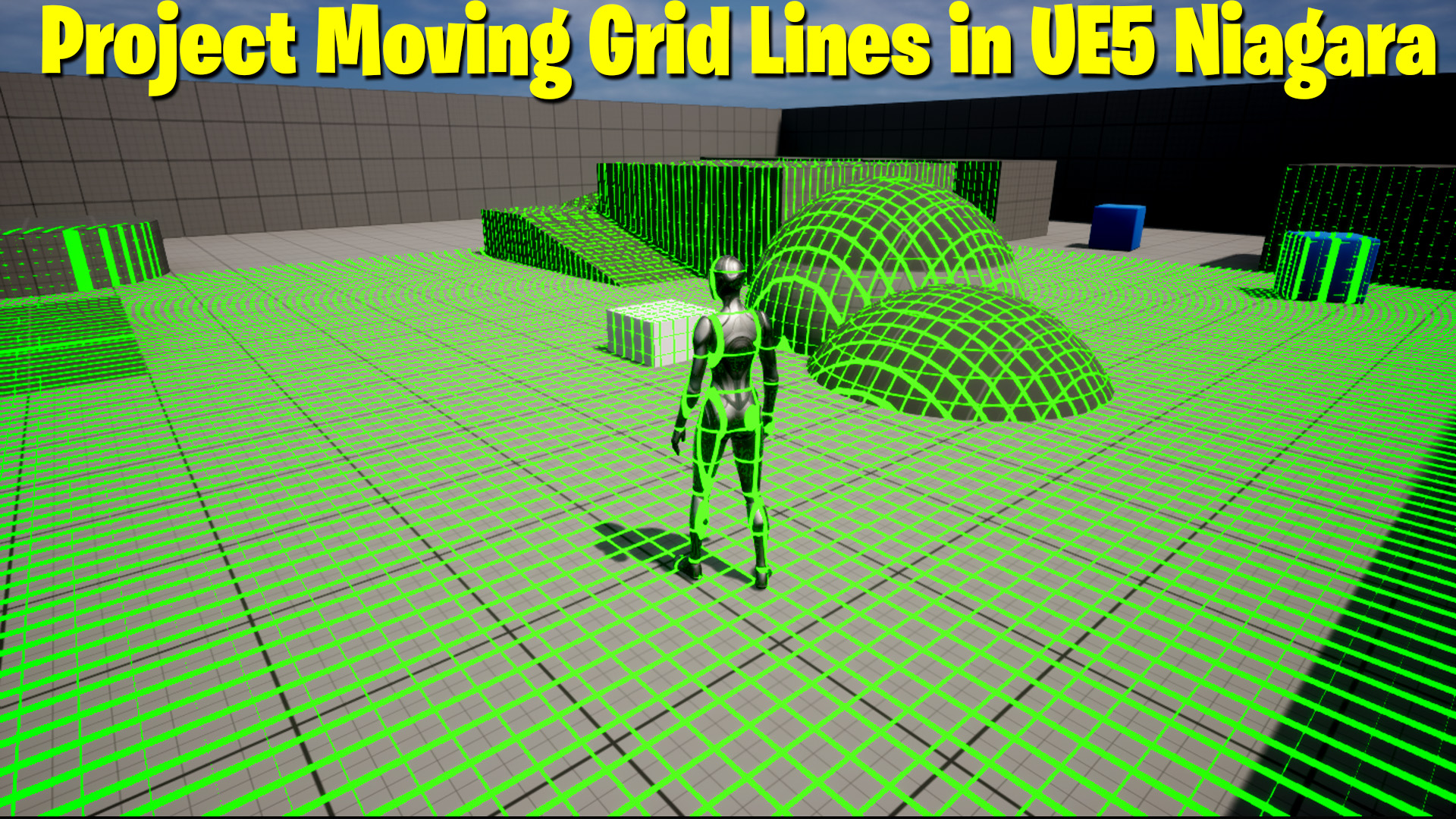
In this tutorial, we’ll walk through a simple yet effective way to create moving grid lines using Niagara in Unreal Engine 5. This method involves rotating planars and applying a material that fades and reflects through intersections. The final result can be used for a variety of in-game effects. Let’s get started!
Key Points:
- Creating the Planar with Material: Begin by creating a planar with a simple color material (e.g., green or red) and apply it. Use opacity and fade distance parameters to control the visibility of the planar.
- Applying the Depth Fade Effect: Use a depth fade to make the planar fade where it intersects with other geometry, such as a cube. This creates a clean visual effect where only the intersection is visible.
- Material Instance Setup: Create an instance of the material and adjust the opacity and fade distance for better control over the fading effect. You can modify the fade distance to make it sharper or more gradual.
- Inverting the Fade for Intersection: To show only the intersecting part of the planar, invert the fade effect and adjust the opacity values so that only the intersection area is visible.
- Rotating the Planar to Create Grid Lines: Duplicate the planar and rotate it in different directions to create a grid. You can layer the planars in both the X and Y axes to get a full grid layout.
- Creating the Niagara System: In the Niagara system, use the mesh renderer with the planar. Position the planars by breaking the position vector and adjusting the Z-axis for an offset effect, ensuring the grid lines align correctly.
- Setting Up the Particle Effect: Apply the instance material to the mesh and adjust the particle size and position to get the desired grid lines effect.
- Adding Rotation and Randomization: For more dynamic grid lines, apply random rotation to the mesh using the Mesh Orientation module. You can also add a subtle sine wave movement to create rotating grid lines with a slight back-and-forth motion.
- Fine-Tuning the Effect: Adjust parameters such as rotation, scale, and movement speed for more variety and control over the final look.
This method is straightforward and versatile, perfect for adding moving grid lines that can be customized for various visual effects in your projects.
Tags:
- #UnrealEngine5
- #Niagara
- #VFX
- #GridLines
- #MovingEffect
- #MaterialSetup
- #DepthFade
- #UE5Niagara
- #GameDevelopment
Additional Notes:
- The depth fade effect is useful for creating dynamic interactions between objects and can be adapted to other types of visuals such as floor markings, energy beams, or visual distortions in your game.
- You can experiment with different types of materials and colors for the grid lines to match the style of your game or scene.
- Using random values for movement and rotation in the Mesh Orientation module can give your grid lines a more organic and random feel, which is great for creating futuristic or glitchy effects.
- The sine wave technique adds a subtle movement that is visually pleasing but doesn’t distract from the primary effect. This can be adjusted further depending on the required intensity of the grid line movement.
Leave a Reply