

Download – https://www.patreon.com/posts/69824326?pr=true
Patreon- https://www.patreon.com/Ashif
NFT – https://opensea.io/CGHOW
Twitter – https://twitter.com/cghow_
👉👉 If you Liked it – http://bit.ly/2UZmiZ4
Channel Ashif – http://bit.ly/3aYaniw
Support me on – paypal.me/9953280644
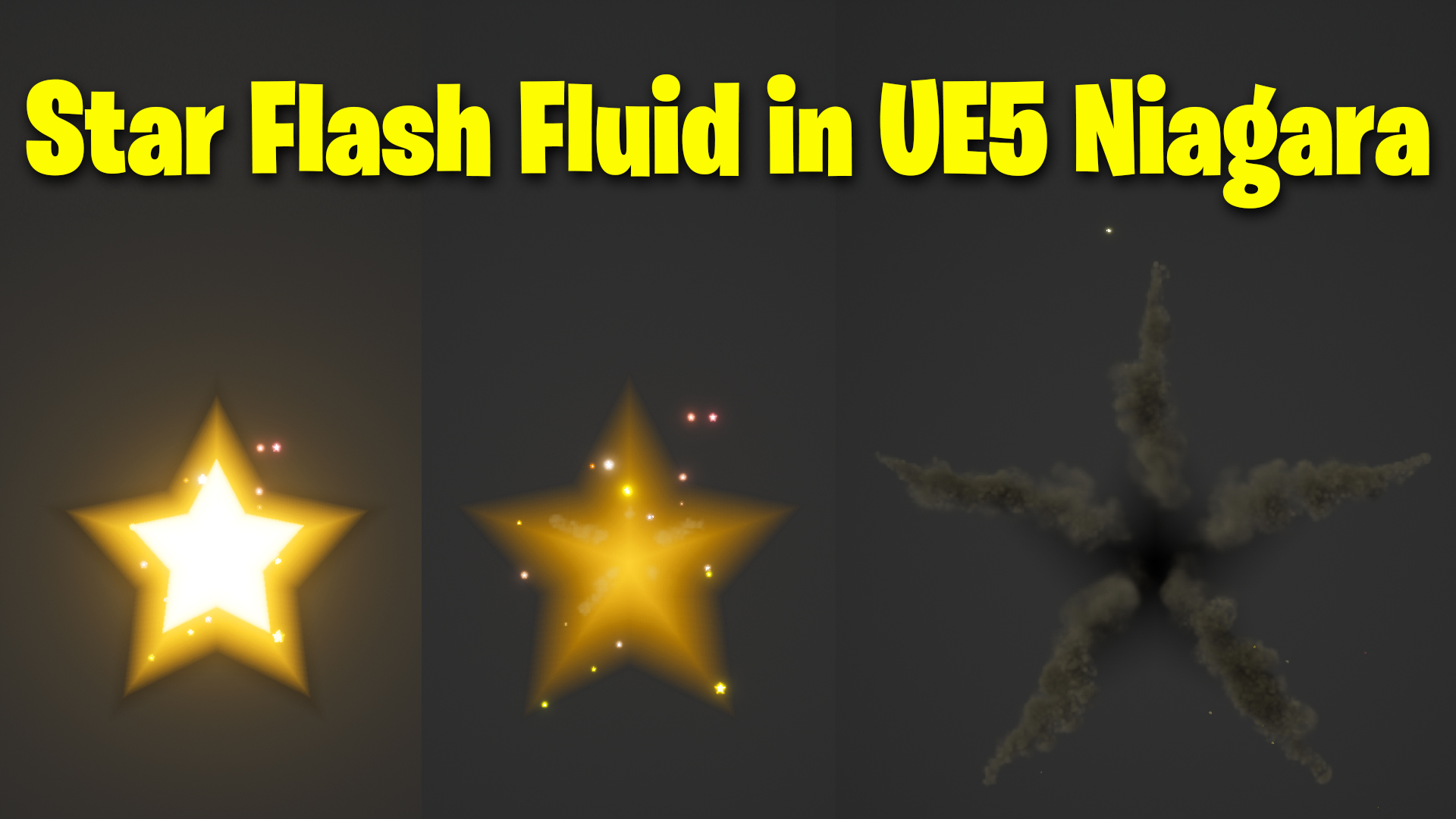
Star Flash with Fluids in UE5 Niagara Tutorial | Download Files
#cghow #UE5 #UE4Niagara #gamefx #ue5niagara #ue4vfx #niagara #unrealengineniagara #realtimevfx
●Visit – https://cghow.com/
Unreal Engine Marketplace – https://bit.ly/3aojvAa
Artstation Store – https://www.artstation.com/ashif/store
Gumroad – https://cghow.gumroad.com/
Introduction:
Hi guys, I’m Asif Ali, and welcome back to CGHOW! In today’s video, I will show you how to create a star flash effect using the fluid simulation in Unreal Engine 5. If you haven’t subscribed to my YouTube channel yet, please hit that subscribe button. If you like this video, don’t forget to like, share, and comment. Let’s get started with the tutorial!
[Music]
Before we begin:
First, make sure to subscribe to my YouTube channel and click on the bell icon, so you get notifications for all my new videos!
Step-by-step Tutorial:
- Turn on the Fluid Plugin:
If you haven’t enabled the fluid plugin yet, turn it on and restart Unreal Engine. After that, create a new Niagara system from a template. - Create the Niagara Emitter:
- Select the 3D template, as I prefer this one.
- Rename it to something like “StarFlashEffect.”
- Emitter Settings:
- For the box, adjust the size to 600 on X, 600 on Z, and 200 on Y.
- This will give the shape for our flash effect.
- Particle Setup:
- Preview your particles and add a renderer.
- To achieve the star effect, delete the current emitter and add a new one. Choose the “Fountain” emitter.
- Change the spawn rate to “Particle Spawn Burst” with a count of 5, representing the five points of the star.
- Adjust the velocity to “Point Velocity” and set gravity and drag to zero.
- Ring and Rotation:
- Set the shape to a “Ring” and adjust the axis to match the rotation of the star. Fine-tune the particle position for proper alignment.
- Enable random direction for particle spawning to avoid uneven distribution.
- Adjust Particle Behavior:
- Change the particle size, life span, and set a constant value for better control.
- Adjust the radius, velocity, and set a fixed value for the spreading particles.
- Secondary Emitter:
- Use the five particles from the previous emitter as the source for a new particle system.
- Set the spawn rate to 1000, and remove unnecessary parameters like velocity and shape.
- Fluid Setup:
- Turn off the temperature and buoyancy in the fluid simulation for a cleaner look.
- Increase turbulence for more dynamic fluid movement.
- Material Creation:
- Create a simple material for the star flash effect. This material will add color and smooth transitions between states.
- Apply the material to your particles and adjust glow, life span, and size to make the flash look realistic.
- Fine-Tuning:
- Adjust velocity, drag, and randomization of particle behavior to add variation and realism.
- Experiment with color randomization and noise to create more organic motion.
- Final Adjustments:
- Ensure the material fades smoothly over time by adjusting the transparency and size scaling.
- Tweak the brightness and glow to get a more defined flash effect.
- Testing and Preview:
- Play the simulation to preview the effect. Adjust values like size, color, and glow as needed for the desired result.
Conclusion:
And that’s it! You now have a fully functional star flash effect using fluid simulation and Niagara in Unreal Engine 5. Thanks for watching, and as always, keep creating and stay tuned for more tutorials. Don’t forget to like, comment, and share the video if you found it helpful!
Leave a Reply