

Download – https://www.patreon.com/posts/73496579
Patreon- https://www.patreon.com/Ashif
NFT – https://opensea.io/CGHOW
Twitter – https://twitter.com/cghow_
👉👉 If you Liked it – http://bit.ly/2UZmiZ4
Channel Ashif – http://bit.ly/3aYaniw
Support me on – paypal.me/9953280644
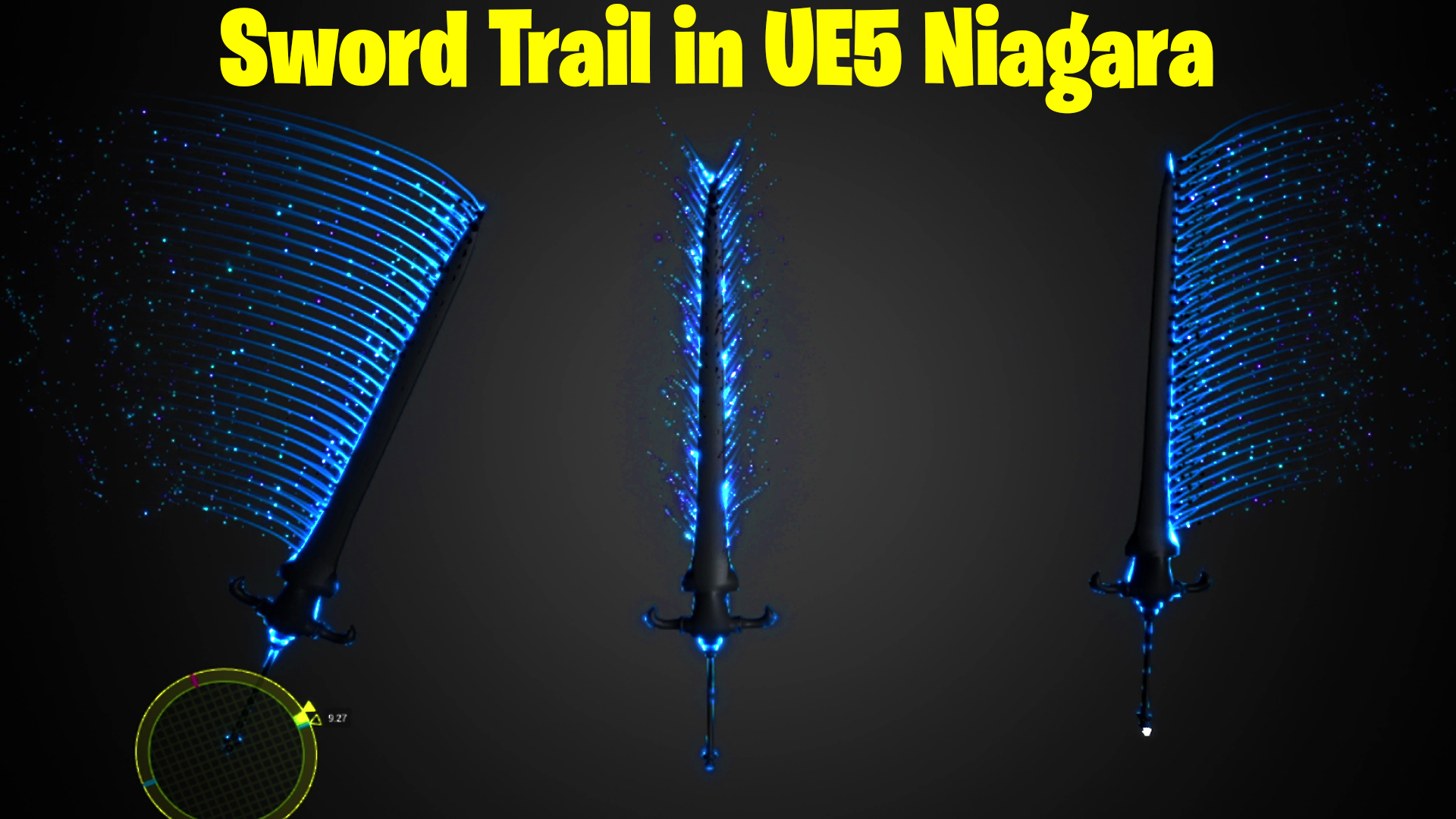
Sword Trails in UE5 Niagara Tutorial | Download Files
#cghow #UE5 #UE4Niagara #gamefx #ue5niagara #ue4vfx #niagara #unrealengineniagara #realtimevfx
●Visit – https://cghow.com/
Unreal Engine Marketplace – https://bit.ly/3aojvAa
Artstation Store – https://www.artstation.com/ashif/store
Gumroad – https://cghow.gumroad.com/
Description:
In this tutorial, I’ll guide you through creating a simple yet impactful sword artifact with a short trail effect in Unreal Engine 5. This effect includes the creation of a sword model, particle trails, and adding materials to bring the visual impact to life. You’ll learn how to generate trails, visualize them with ribbons, and fine-tune the effect to make it look realistic and dynamic. This is an essential tutorial for those interested in adding sword effects to their game projects.
Key Points:
- Creating the Sword Mesh:
- Start by importing or selecting a sword static mesh.
- Rotate and position the sword for the correct orientation in the scene.
- Particle Setup:
- Create a Niagara emitter and set up a source particle system.
- Use a burst spawn of 50 particles and adjust the size for better visibility.
- Offset particle position using vector manipulation for proper alignment along the sword.
- Adding Trails with Ribbons:
- Use the persistent ID for the source to allow continuous trail creation.
- Add a velocity module to control the direction of the ribbon particles.
- Adjust the ribbon thickness and apply basic materials to visualize the effect.
- Following Sword Movement:
- Use the event handler and location spawn to ensure that particles follow the sword’s position and rotation.
- Adjust the velocity, life, and other properties for smoother effects.
- Material Creation for Sword and Ribbons:
- Use emissive material for the sword to make it glow and appear more dynamic.
- For the ribbons, create a gradient-based material to simulate a trail effect that fades over time.
- Refining the Effect:
- Apply curl noise to the ribbons for a more natural, wavy motion.
- Adjust particle life, size, and spawn rates for better control over the visual outcome.
- Fine-tune the velocity and the noise values for more subtle or dramatic motion.
- Final Adjustments:
- Add a dark particle effect for extra flair, giving the sword a mystical or enhanced look.
- Test and adjust the camera angle and scene lighting to highlight the effect.
Additional Notes:
- The key to getting smooth movement with the ribbons is ensuring that the sword’s position is updated correctly, which is why the location spawn system is so crucial.
- If you’re working with UE 5.1 or later, you can use GPU ribbons for better performance, though the standard ribbons work perfectly fine for most cases.
- Fine-tuning the spawn rate, particle size, and life can help you achieve the perfect look for your sword trail effect.
Leave a Reply