

Download – https://www.patreon.com/posts/61801290
Ref – https://bit.ly/3g5ngdh
NFT – https://opensea.io/CGHOW
👉👉 If you Liked it – http://bit.ly/2UZmiZ4
Channel Ashif – http://bit.ly/3aYaniw
Support me on – https://www.patreon.com/Ashif
Support me on – paypal.me/9953280644
UE4 Material FX Tutorial | Download Files
#cghow #UE5 #UE4Niagara #gamefx #ue5niagara #ue4vfx #niagara #unrealengineniagara #realtimevfx
●Upload Your Tutorials/Work – https://cghow.com/
Purchase Effect Package From Unreal engine Marketplace –
Unreal Engine Niagara Effects in Marketplace – https://youtu.be/DF4Lb_btEus
Niagara Effects Pack in Marketplace – https://youtu.be/g6_k8T7FqHA
Unreal Engine Advanced Magical Effects in Marketplace – https://youtu.be/0Dn3GLIzhMo
Smoke in UE4 Niagara Pack01 in Unreal Engine Marketplace – https://youtu.be/38BPA_9yqJ8
UE4 Niagara Fire Pack 01 in Marketplace – https://youtu.be/PW5FL-zZoP4
UE4 Niagara Fire Pack 02 in Marketplace – https://youtu.be/fdLXPlUEzxM
UE4 Niagara Explosions Pack 02 in Marketplace – https://youtu.be/dj-XX9he4aE
Unreal Engine Niagara Effects Pack 03 in Marketplace – https://youtu.be/0kKon43I-Og
Slow Motion Explosion in UE4 Niagara Pack 04 in Marketplace – https://youtu.be/lUK1eW5zRP0
Unreal Engine Niagara Effects pack 04 in Marketplace – https://youtu.be/MihWYB31Gi4
Slow Motion Explosion in UE4 Niagara Pack 04 in Marketplace – https://youtu.be/lUK1eW5zRP0
UE4.25 Niagara Effects Pack 05 in Marketplace – https://youtu.be/sn1HIENVTDI
UE4.25 Niagara Effects Pack 06 in Marketplace – https://youtu.be/pvH_xGQ5jvs
Explosions Package in Unreal Engine Niagara Particle System – https://youtu.be/1mbqWscjUJ4
●Follow FB Page – https://www.facebook.com/cghow0/
●Join FB Group – https://www.facebook.com/groups/cghow/
●Android App – http://bit.ly/2XUnhoR
Playlists-
●Unreal Engine Niagara Tutorials – http://bit.ly/2SmPEuT
●Unreal engine VFX Tutorials -http://bit.ly/2JNXyJZ
●Unity VFX Tutorials – http://bit.ly/2XNGlKz
Introduction
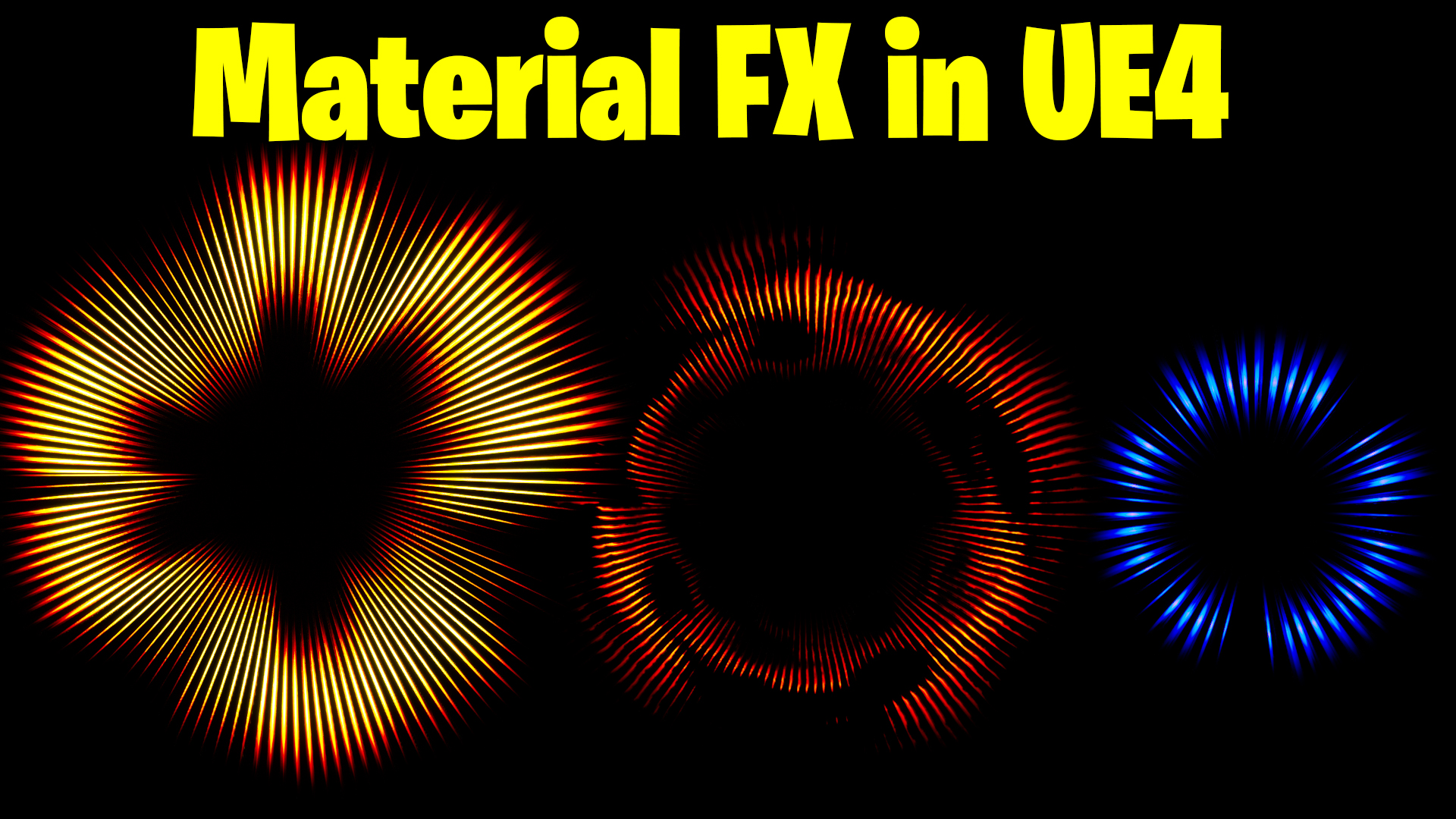
Hi guys, I’m Ashif Ali, and you’re watching CGHOW! Today, I’m going to show you how to create a dynamic material in Unreal Engine 4 (UE4). In this tutorial, you’ll learn how to control various aspects of the material, including adjusting the tiling, changing colors, modifying height, and experimenting with different patterns. You can even swap textures for unique effects—all done within the material itself.
If you haven’t subscribed to my YouTube channel yet, make sure to subscribe, like, share, and leave a comment if you enjoy this video. Now, let’s dive into the tutorial!
Start Tutorial
First, don’t forget to click the bell icon so you’ll get notified every time I upload a new video.
I have this folder called “Matt FX” with a reference image that we’ll follow. I found it on Pinterest, and we’ll try to replicate the effect shown in the image. It’s not going to be an exact match, but we’ll aim to create something similar.
If you want to check out a similar tutorial I did earlier, just search for “Material Effects” on my channel. The approach is almost the same, but this one will include random streak sizes, while the previous one had uniform sizes.
Let’s start by creating a material in UE4. I’ll create a new material called “MFX.” We’ll be working with a planar object and make a ring using the radial exponent technique.
Step-by-Step Process
- Creating the Ring:
First, use the “Radial Exponent” node and connect it to a “Vector to Radial” node. This creates the circular ring shape. You can adjust the density to change its appearance. - Adding the Streaks:
To create the streaks, I’ll duplicate the radial setup and use the “Radial Coordinates” instead. By increasing the tiling, you’ll see a repeating pattern.
To make it more customizable, connect a texture coordinate, multiply it by 2, and take the fractional part to get the desired tiling effect. - Making the Pattern Random:
To achieve random sizes for the streaks, we’ll use a noise texture. I’ll use a simple noise texture from Photoshop, which we’ll pixelate. After multiplying it by texture coordinates, the fractional part will give us random values that we can apply to the radius of each streak. You can control the randomness by adjusting the noise and tiling settings. - Randomizing Streaks:
Now we need to randomize the size of the streaks. I’ll use a simple math technique where we clamp the values to create variation in the radius. Adjust the maximum value to control the size variation. - Final Adjustments:
You can tweak the material further by adjusting parameters such as the length, hue, and opacity. Adding a gradient texture will also help with the color variation. Use the “Power” node to fine-tune the look and make the effect more dynamic. - Animating the Effect:
If you want to animate the material, you can add pan effects to the noise texture. Adjust the values to create subtle animation effects that make the material feel alive.
Conclusion
That’s it! You’ve now learned how to create a highly customizable material with random patterns, colors, and animations. Feel free to experiment with different noise textures to get unique results. The beauty of this technique is that it’s incredibly flexible, and you can control almost every aspect of the effect.
If you want to take this further, I’ll upload the project files so you can download and play around with them. Remember, you can always replace the noise texture to create entirely different looks!
Thanks for watching, keep learning, and I’ll see you in the next video!
Leave a Reply