

Support me on – https://www.patreon.com/Ashif
Support me on – paypal.me/9953280644
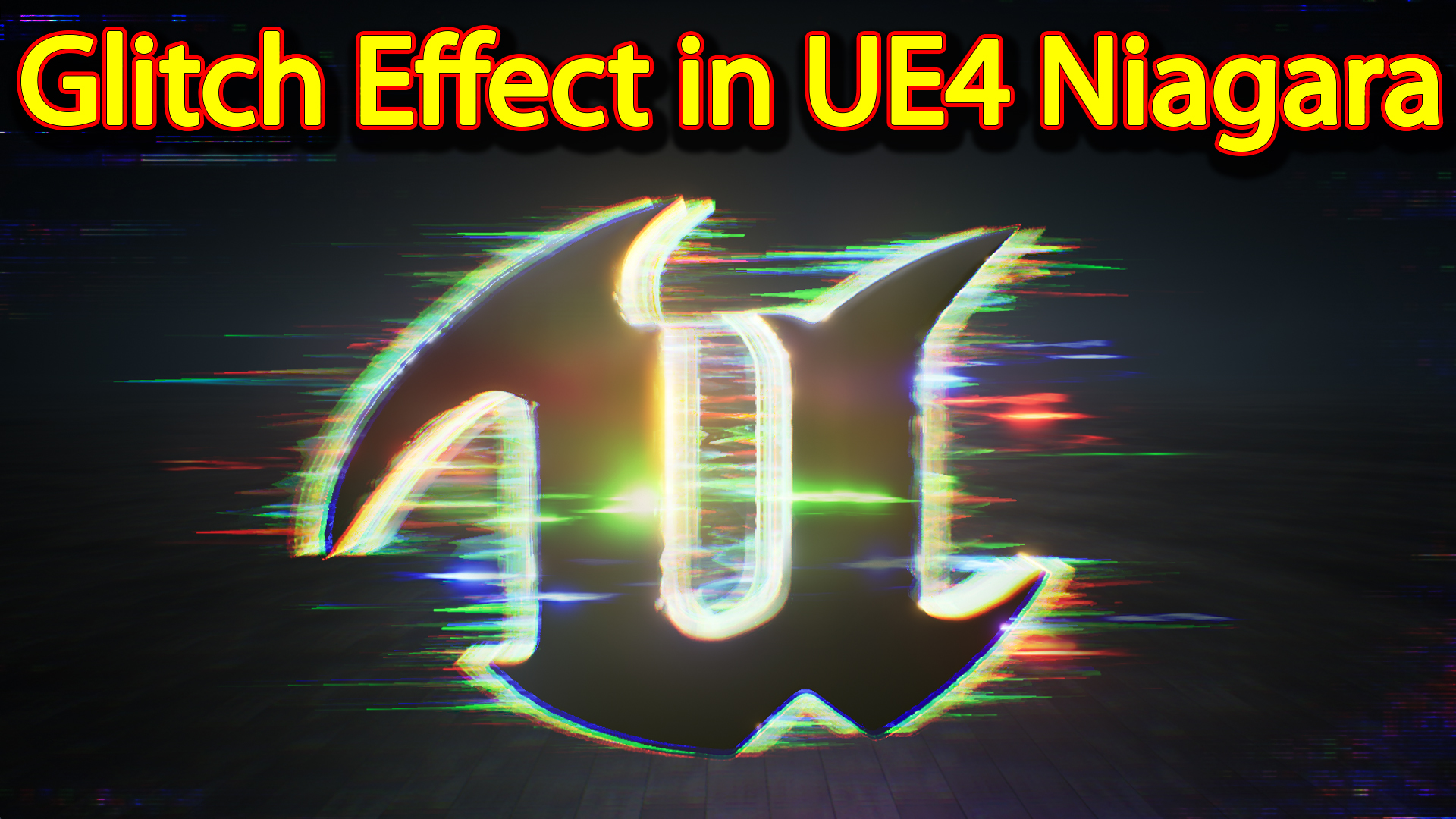
Hi guys today i have created this glitch effect in unreal engine Niagara. for this effect i used this U shape logo on unreal engine that i created in Maya and then i created some material using world position offset to create this glitch effect.
#cghow #RealtimeVFX #UE4Niagara #gamefx #ue4vfx #ue4fx #niagara #unrealengineniagara #unrealenginevfxtutorials
●Upload Your Tutorials/Work – https://cghow.com/
…………………………………………………………………………………………………………
Purchase Effect Package From Unreal engine Marketplace –
●Niagara Effects Pack – http://bit.ly/2LWgZTx
●Advanced Magical FX – http://bit.ly/2XQYyXL
……………………………………………………………………………………………………………………………………
●Patreon – https://www.patreon.com/Ashif
……………………………………………………………………………………………………………………………………
●Follow FB Page – https://www.facebook.com/cghow0/
●Join FB Group – https://www.facebook.com/groups/cghow/
……………………………………………………………………………………………………………………………………
●Android App – http://bit.ly/2XUnhoR
……………………………………………………………………………………………………………………………………
Playlists-
●Unreal Engine Niagara Tutorials – http://bit.ly/2SmPEuT
●Unreal engine VFX Tutorials -http://bit.ly/2JNXyJZ
●Unity VFX Tutorials – http://bit.ly/2XNGlKz
……………………………………………………………………………………………………………………………………
●Discussion & Help Forum – http://bit.ly/2Lo0Er7
……………………………………………………………………………………………………………………………………


Title: How to Create a Stunning Glitch Effect in Unreal Engine using Niagara
Description: Learn how to create an impressive glitch effect in Unreal Engine 4.25 using the Niagara particle system. In this tutorial, we’ll walk through every step, from setting up a 3D mesh in Maya to applying dynamic effects like chromatic aberration, reflection, and particle streaks for an eye-catching glitch look.
Tutorial Breakdown
Hello everyone, I’m Ashif Ali, and you’re watching CGHOW! Today, I’ll be guiding you through a glitch effect I created in Unreal Engine, specifically using Niagara in Unreal Engine 4.25. This glitch effect includes various dynamic elements on a 3D Unreal Engine logo that we’ll cover in detail below.
Key Steps in Creating the Glitch Effect
- Setup and Initial Mesh Creation:
- I created a “U” shape logo in Maya and imported it into Unreal Engine, using a planar UV map for accurate texture application. This mesh acts as the base for our glitch effect.
- Applying Chromatic Aberration for Distortion:
- To add a vibrant distortion effect, I used the post-process effect chromatic aberration. Adjusting the effect value brings out red, green, and blue color shifts, enhancing the glitchy look.
- 3D Mesh Material and Reflection:
- The first material in this setup is a basic gray reflective material. To simulate reflections, I used a reflection vector with a texture for added shine, making it appear like a chrome surface. Adjusting the shine through reflection values allows control over how glossy or metallic it appears.
- Dynamic Texture and Panning Effect:
- Using a noise texture from Photoshop, I panned it across the mesh on the X-axis and applied tiling for a jagged, glitchy look. By multiplying the panned texture with dynamic parameters, I could control the speed and intensity of the distortion, creating a glitch movement along the X-axis.
- Wireframe Layer for Depth:
- Adding a wireframe layer with different opacity values introduced an additional layer of depth, simulating an outline of the mesh. This wireframe effect uses a power value for a more pronounced outline, creating a digital, broken look when combined with the main effect.
- Reflection Strikes Using a Custom Material:
- For light streaks across the mesh, I created a panning texture material. Since the UVs weren’t perfectly aligned, I used a local position node for distortion-free projection. This streaking effect adds realism and enhances the glitch effect, with dynamic parameter adjustments to control tiling and reflection levels.
- Color Layers with Random Tiling and Distortion:
- Multiple color layers (red, green, blue) were added to intensify the glitchy look, each with slight random tiling and distortion values to create a flickering, chaotic effect. Adjusting these parameters dynamically, each layer moves independently, adding to the overall movement.
- Particle Streaks with Velocity Aligned:
- For additional visual impact, I incorporated particle streaks in red, green, and blue with aligned velocity along the X-axis. Using sphere location for particle emission and random velocity alignment adds movement and variation. These particle streaks are visible as beams of light flashing across the surface, adding an exciting element.
Main Material Parameters & Values
- Reflection:
- Shine value adjustments using reflection vector with chrome-like textures.
- Distortion Control:
- Noise texture panning multiplied by X vector (R channel) with dynamic tiling for controlled, smooth distortion.
- Wireframe Effect:
- Power values adjusted for a noticeable wireframe effect around the logo.
- Dynamic Color Flickering:
- Each color (R, G, B) has a unique tiling and random distribution for a flickering glitch effect.
Additional Notes
- Looping and Duration:
- Infinite looping was enabled for continuous glitch motion, with durations set for each emitter based on its purpose (e.g., main mesh, wireframe, particle streaks).
- Particle Life and Spawn Rates:
- Particle life and spawn rates were set to create a stable but dynamic look, making sure particles reappear smoothly without obvious breaks.
Key Points:
- UVs and Mesh Preparation in Maya
- Chromatic Aberration for Distorted Colors
- Reflection Vector for Chrome Effect
- Dynamic Tiling and Panning Using Noise Texture
- Layering Effects with Wireframe and Color Streaks
- Using Particle Streaks with Sphere Location and Velocity Aligned
Tags: #UnrealEngine #Niagara #VFX #GlitchEffect #UE4 #3DEffects #CGHOW #AshifAli
I hope this breakdown helps you understand the process behind creating a glitch effect using Niagara in Unreal Engine! If you try this out and encounter any issues, feel free to leave a comment on the video, and don’t forget to subscribe to CGHOW for more tutorials.
Happy glitching, and keep learning!
Leave a Reply